External clients
ArconQ's authentication and authorization system follows industry-standard OAuth 2.0 and OpenID Connect (OIDC) protocols. This means you can integrate external applications with ArconQ using the same patterns and tools you'd use with any OAuth/OIDC-compliant system.
In these protocols, a client is an application that requests access to protected resources on behalf of a user or itself. Clients can be web applications, mobile apps, desktop applications, or server-side services that need to authenticate users or access APIs. Each client is identified by a unique Client ID and is configured with specific settings such as:
- Allowed grant types (authorization code, client credentials, etc.)
- Redirect URIs where authentication responses are sent
- Client secrets for confidential clients that can securely store credentials
When you configure external clients in ArconQ, you're setting up these OAuth 2.0/OIDC parameters to enable secure authentication and authorization for your applications. One place in which you could already use External Client is ArconQ CLI.
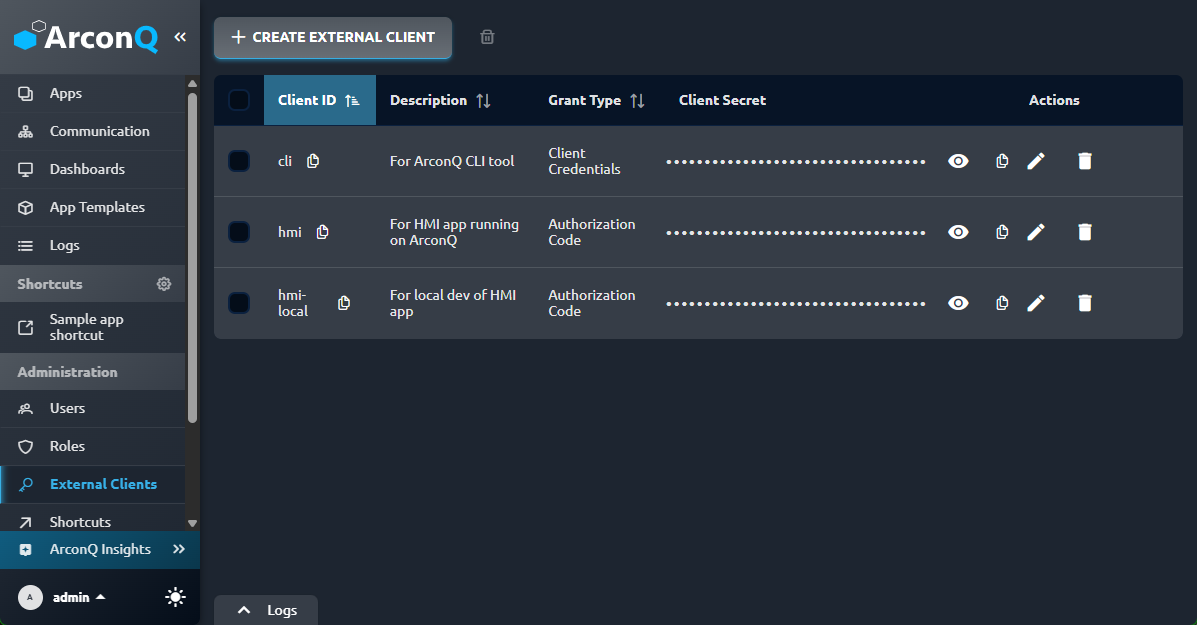
Creating External Client
To create a new External Client you need to provide the Client ID (which you will later use to make the connection). Description is optional. Other fields depend on the grant type you choose.
Grant Types (OAuth 2.0 Flows)
ArconQ supports the two most commonly used OAuth 2.0 grant types, which define how an application obtains access tokens.
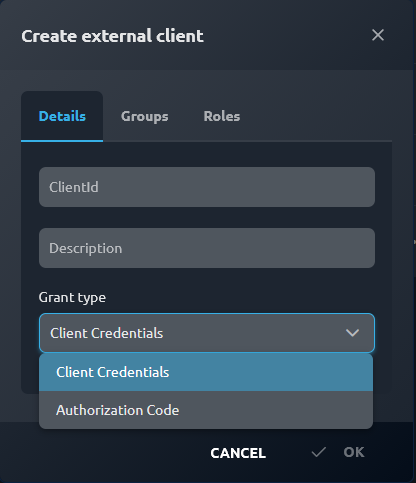
Authorization Code Flow
The Authorization Code flow is the option your Public Apps with frontend UI where users need to authenticate and grant permissions. This flow involves:
- The user is redirected to ArconQ's login page
- After successful authentication, ArconQ redirects back to the application with an authorization code
- The application exchanges this code for an access token
- The access token is used to access protected resources
For this flow, you need to provide the redirect URI and post logout redirect URI of your App. More details below
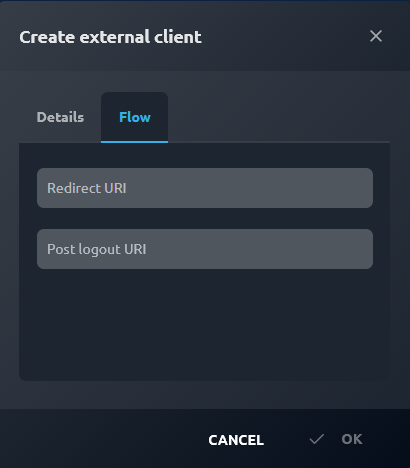
Client Credentials Flow
The Client Credentials flow is designed for machine-to-machine authentication where no user interaction is involved. This is ideal for:
- Backend services communicating with other backend services hosted on ArconQ
- Backend services communicating with ArconQ APIs
- Automated scripts or batch jobs
- Server-to-server integrations
In this flow, the application authenticates directly using its client ID and client secret to obtain an access token. There's no user authorization step, as the client is acting on its own behalf rather than on behalf of a user.
You can assign roles and groups of roles to a client of this grant type, and the obtained token will contain these roles, so you can use them for authorization in your backend services.
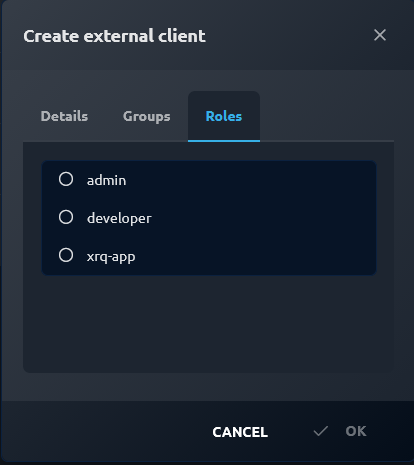
The client secret is generated by the ArconQ. You can preview it and copy from the ArconQ UI:

Implementing user authentication in frontend Apps
The typical scenario where you would want to use the Authorization Code flow is when you have a frontend App that wants to connect to backend services that require authorization and are hosted on ArconQ. You may encounter a need for a proper frontend App authorization flow as well:
- in development: when you want your app served from localhost, i.e., at
http://localhost:5173/, to connect with the backend service hosted on ArconQ; - as in production, when you want to access a Public App directly by its URL, i.e., at
https://arconq.prod/apps/public/YOUR-APP-ALIAS/, without logging to the ArconQ platform beforehand.
As a matter of fact, you can use the ArconQ as an Identity Provider for a frontend application hosted anywhere, if configured properly.
Step 1: Configure the External Client
Create a new External Client that will be used by your App:
- provide a Client ID, description, and roles as desired
- go to the Flow tab and select the "Authorization Code" grant type
- provide redirect URI and post logout redirect URI of your App: typically, both will be exactly the same, i.e.,
https://arconq.prod/apps/public/YOUR-APP-ALIAS/, but you have an option to configure it to your specific needs
Step 2: Implement OIDC flow in your App
We advise to use trusted OIDC library for the frontend technology of your choice. The minimal configuration you need to provide is:
{
  "authority": "<your ArconQ instance URL + the ArconQ realm path>, i.e, https://arconq.prod/identity-provider/realms/arconq",
  "clientId": "<client ID provided when creating the External Client>",
  "redirectUri": "<URI provided when creating the External Client>",
  "postLogoutRedirectUri": "<URI provided when creating the External Client>",
  "scope": "arconq"
}
The authority is your ArconQ instance URL followed by the ArconQ realm path /identity-provider/realms/arconq. Your OIDC library reads the token, authorization and other endpoints from <authority>/.well-known/openid-configuration, so you only need to configure the authority.
Here's an example of the React App using the oidc-react library configured to work in development scenario:
// main.tsx

import { AuthProvider, type AuthProviderProps } from "oidc-react";

const OIDC_CONFIG: AuthProviderProps = {
  authority: "https://arconq.prod/identity-provider/realms/arconq", // the authority is your ArconQ instance URL plus the ArconQ realm path; hardcoding it is handy when starting the app from outside ArconQ (e.g. at `http://localhost:5173`), but if you want your App auth to work independently of where it's hosted you can use `` `${window.location.origin}/identity-provider/realms/arconq` `` here
  clientId: "myAppLocal",
  redirectUri: `${window.location.origin}/`, // it could be, for example, hardcoded `http://localhost:5173` as well
  postLogoutRedirectUri: `${window.location.origin}/`,
  scope: "arconq openid", // this is required!
  automaticSilentRenew: true, // optional, add this if you want automatic renewal of the access token
  loadUserInfo: true, // optional, but if you want get user roles, for example, then it's required
};

createRoot(document.getElementById("root")!).render(
  <AuthProvider {...OIDC_CONFIG}>...</AuthProvider>,
);
... and all of the operations related to redirects and tokens management should be handled by the library automatically.
Step 3: Use the Bearer token
Your App successfully obtained the access token, but in order to access the resources that need authorization, you need to use this token in your HTTP requests. Provided that your backend services are configured in the recommended way (see Authorization SDK reference), you need to add to your HTTP requests the Authorization HTTP header containing the obtained token.
Here's a simple example in JavaScript:
fetch("https://example.com", {
  headers: {
    Authorization: `Bearer ${token}`,
  },
})
  .then((res) => {
    // ...
  })
  .catch((e) => {
    // ...
  });
If you're using the oidc-react library mentioned above, obtaining the token might look like this:
// ExampleComponent.tsx

import { useAuth } from "oidc-react";

const ExampleComponent: React.FunctionComponent = () => {
  const auth = useAuth();
  const token = auth.userData?.access_token;
  const roles = authContext.userData?.profile.roles;
  // ...
};