File Storage Page
Overview
The File Storage page is a central file manager where you organize, upload, download and manage files and folders. The same storage is accessible from your apps through the SDK — see the File Storage SDK reference.
When File Storage is disabled, the page is not accessible. It can be enabled via Helm by adding
--set fileStorage.enabled=true
to your helm install or helm upgrade command.
Browsing files and folders
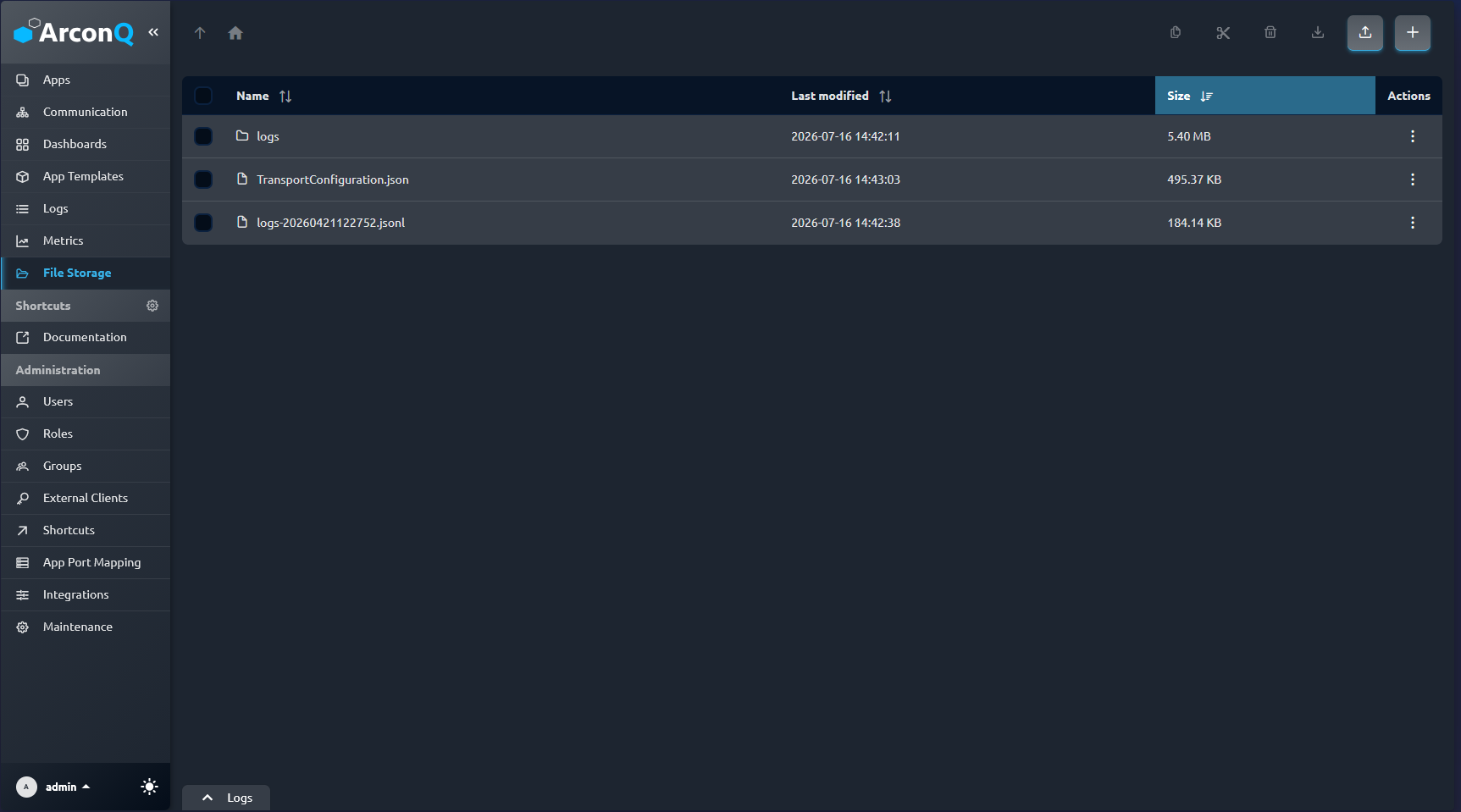
Files and folders in the current directory are listed in a table showing each item's name, last modified time and size.
- Open a folder by clicking its name.
- Navigate using the breadcrumb bar at the top: click the home icon to jump to the root, click any segment of the path to jump to that folder, or use the up arrow to go to the parent folder.
- Sort the list by clicking the Name, Last modified or Size column headers. Folders are always grouped ahead of files.
The current folder is reflected in the page URL, so you can bookmark or share a link that opens a specific folder directly. If a linked folder no longer exists, the page falls back to the root directory.

Uploading files
There are two ways to upload into the current folder:
- Click the upload button and pick one or more files.
- Drag and drop files from your computer anywhere onto the page.
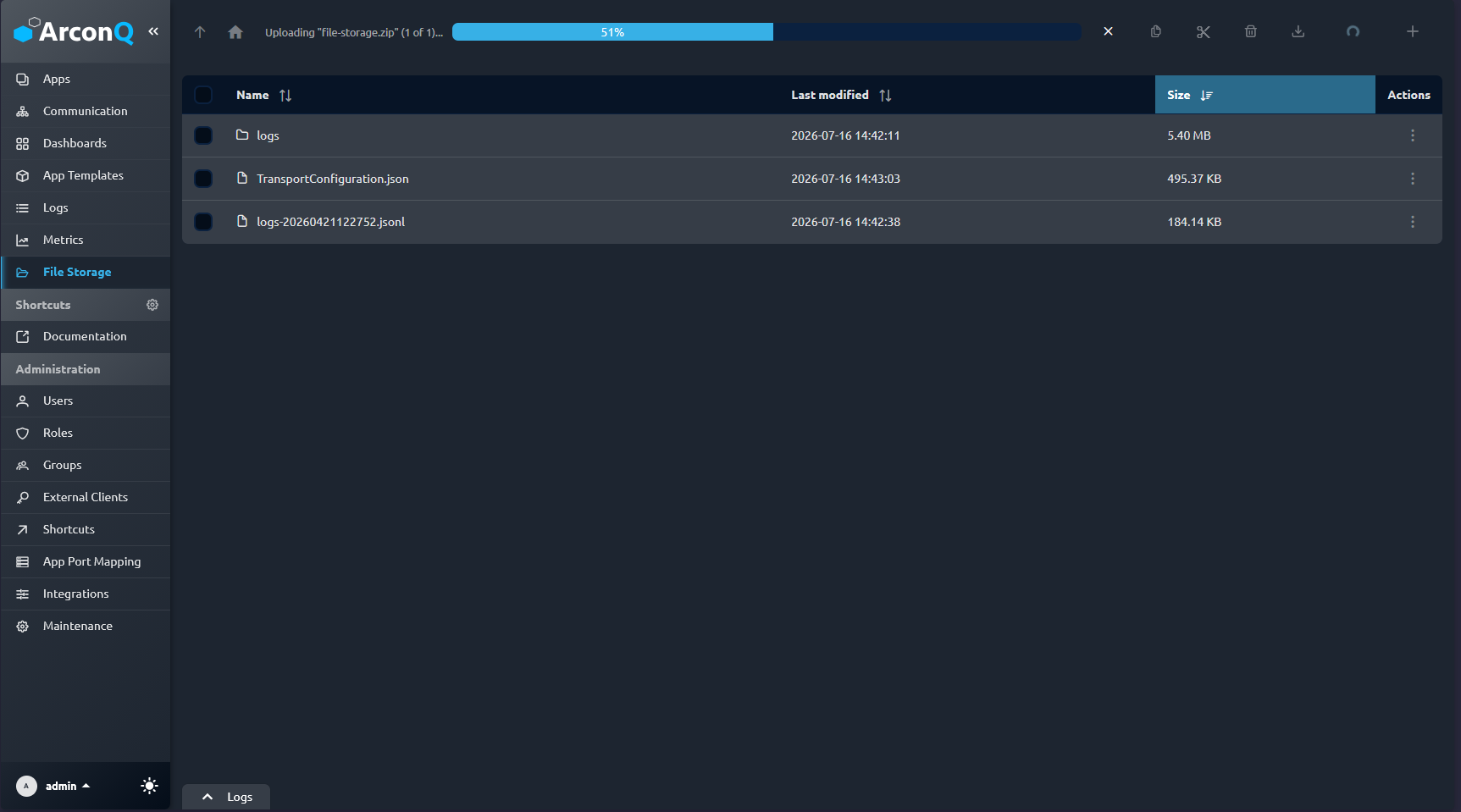
Multiple files can be uploaded at once. A progress bar shows the current file and the position in the queue (for example, 2 of 5), and you can cancel an in-progress upload at any time.
The maximum size of a single uploaded file is 1 GB. Files larger than that are skipped with an error. File names are validated using the same remote path rules as the SDK.
Selecting multiple items
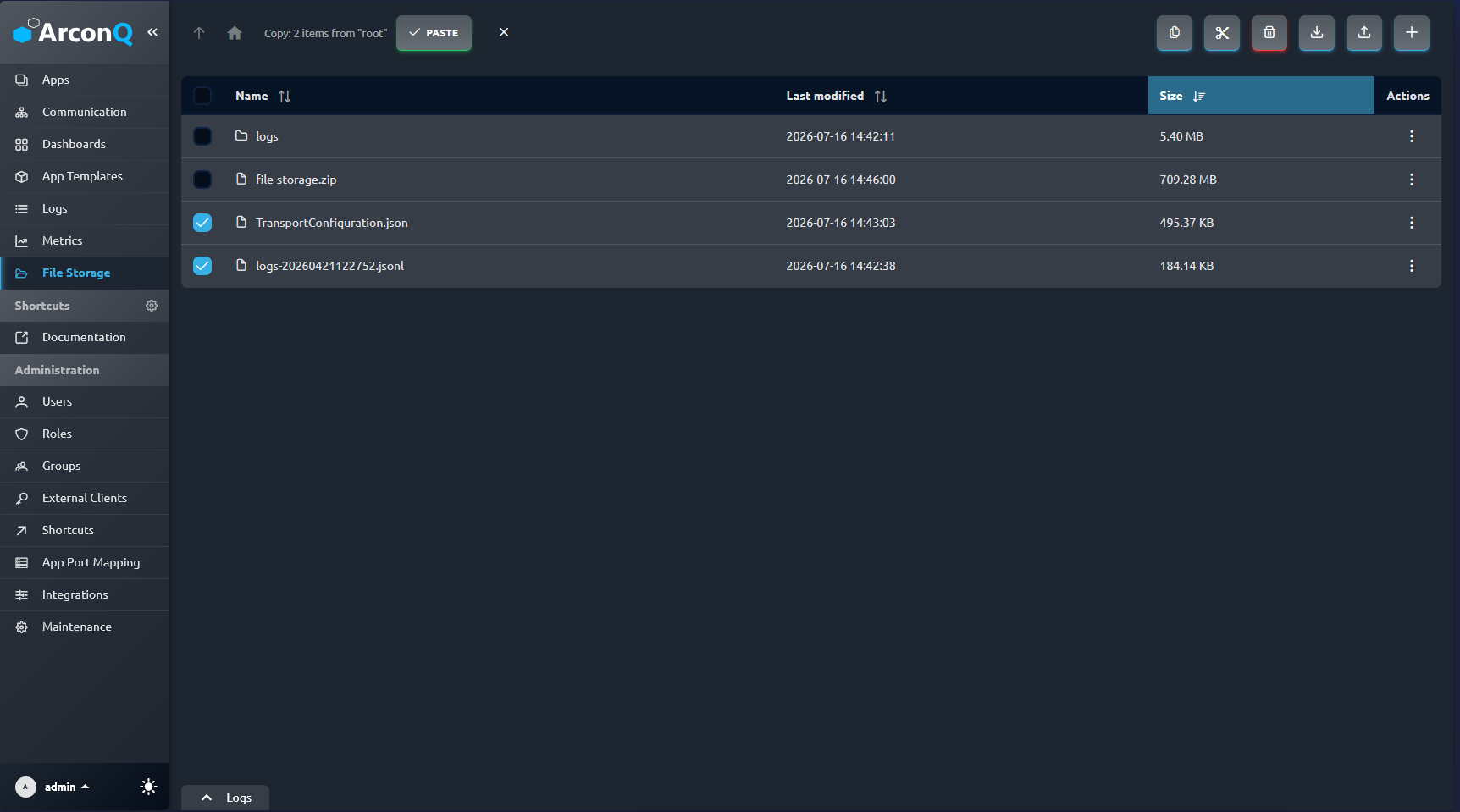
Use the checkbox in each row, or the header checkbox to select everything in the current folder. With items selected, the toolbar lets you copy, cut, download or delete them in one action.
Downloading files and folders
- Download a file by clicking its name, or from its row Actions menu.
- Download a folder from its Actions menu — the folder is packaged and downloaded as a
.ziparchive. - Download several items at once by selecting them with the row checkboxes and clicking the download button in the toolbar; the selection is downloaded as a single
.ziparchive.
Archive creation shows progress and can be canceled while it runs.
Creating folders
Click the new folder button to create a folder in the current directory. Provide a name that follows the remote path rules.
Renaming
Choose Rename from an item's Actions menu to give a file or folder a new name. The new name is validated and must not collide with an existing item in the same folder.
Duplicating
Choose Duplicate from an item's Actions menu to create a copy in the same folder. A suggested name (for example report - Copy.csv) is pre-filled, and you can change it before confirming.
Moving and copying items
You can reorganize files and folders using cut/copy/paste or drag-and-drop.
- Copy or Cut an item from its Actions menu, or select one or more items and use the copy / cut buttons in the toolbar.
- A banner shows what is on the clipboard and where it came from. Navigate to the destination folder and click Paste. Copy leaves the originals in place; cut (move) removes them from the source once pasted.
- Keyboard shortcuts are supported: Ctrl/Cmd + C to copy, Ctrl/Cmd + X to cut, Ctrl/Cmd + V to paste, and Esc to clear the clipboard.
- You can also drag one or more selected items onto a destination folder in the list to move them there.
A progress indicator is shown while items are being copied or moved.
Deleting
- Delete a file or folder from its Actions menu, or select several items and use the delete button in the toolbar.
- Deleting a folder removes the folder and all of its contents
- All deletions require confirmation.