App advanced settings
In this section, we explore the advanced configuration options for your App. These settings are specifically designed for experienced users who seek fine-grained control over their App’s behavior. By adjusting these parameters, developers can optimize performance, tailor functionality, and address specific use cases
The default values work well in most cases and you should only adjust them in case your App requires it.
Advanced settings view on the App creation wizard:
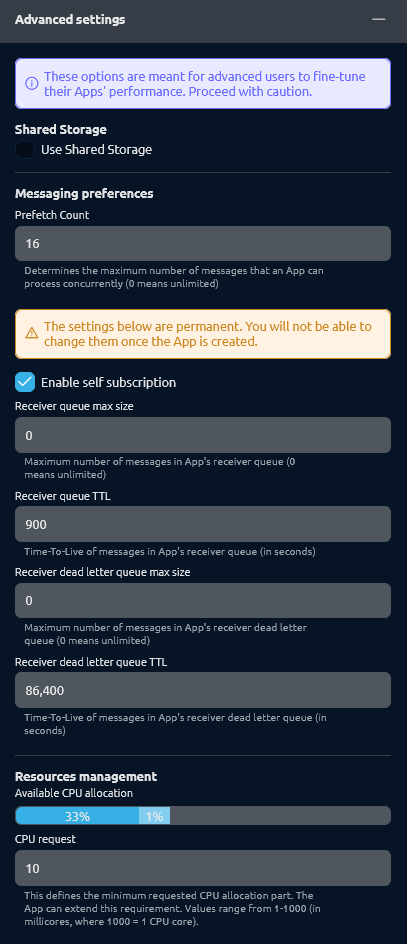
Settings overview
Shared storage
- Use Shared Storage (default:
false): Checking this option will enable your App to access the Persistent Volume storage shared between all the other Apps on the platform. It might be useful in a case when you want to share some files between your Apps.
Messaging preferences
These settings will let you adjust the message broker and its queues configuration used to communicate between your Apps.
- Prefetch count (default: 16): Prefetch count determines the number of messages that will be delivered to consumers before receiving an acknowledgment for previously delivered and handled messages. This helps in controlling the flow of messages and balancing the load.
Keep in mind, that below settings are only available during the App creation! You will not be able to change them once the App is created.
- Enable self subscription (default:
true): Unchecking this option will disable your App from receiving messages that were published by the App itself. - Receiver queue max size (default:
0): This value indicates the maximum number of messages in your App's receiver queue. Providing a value of0will make it unlimited. - Receiver queue TTL (default:
900): This value indicates the time-to-live of messages in your App's receiver queue. Message TTL determines how long messages can be retained in a queue. The units used here are seconds. - Receiver dead letter queue max size (default:
0): This value indicates the maximum number of messages in your App's receiver dead letter queue. Again,0means unlimited. - Receiver dead letter queue TTL (default:
86400): This value indicates the time-to-live of messages in your App's receiver dead letter queue. Measured in seconds.
What is the dead letter queue?
Some messages stored in the Message Broker's queues will expire or be negatively acknowledged by consumers. Instead of silently dropping them, the Message Broker can be configured to “dead letter” them instead, that is to republish those messages to a special-purpose exchange.
Resources management
ArconQ uses Kubernetes under the hood to deploy and run your Apps. This section defines preferences used when deploying the App container regarding its resource usage.
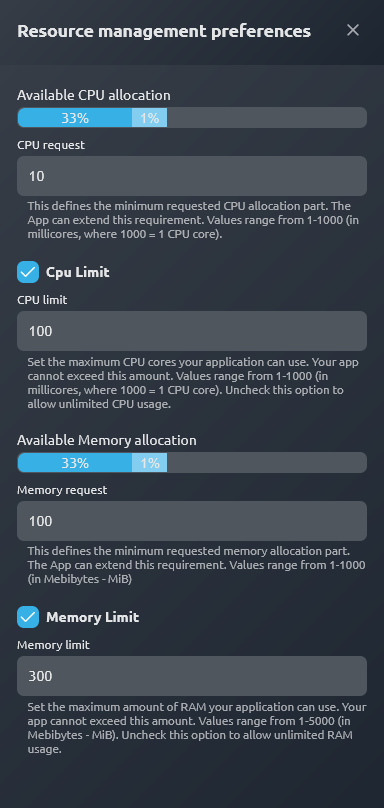 | Available allocation graphsThe graphs show the current sum of requests in the ArconQ cluster, as well as the projected request of the App you're creating or editing. The projected request will change according to the value you set in the request inputs. RequestsResource requests define the minimum CPU and memory an App deployment needs. CPU - in millicores, Memory - in Mebibytes (MiB). They are used by the scheduler to decide which node can run the Pod. The scheduler only considers requests, not limits, when placing Pods. LimitsResource limits define the maximum CPU and memory an App deployment can use. If memory usage exceeds the limit, the App is killed; if CPU usage exceeds the limit, it's throttled but not killed. Setting the limit is optional. Leaving the checkbox unchecked will set the value to unlimited. Notes
|
You can override the default requests and limits, as well as configure limits for ArconQ services and infrastructure, in the Helm chart under the resourceManagement section. See the values.yml file on the ArconQ Helm Chart Parameters page for details.