Advanced import and export
The basic import/export mechanism is a convenient way to create and reuse a straightforward backup of your Apps’ configuration within a single workspace. However, in a complex production-ready environment, it may prove insufficient. For this reason, ArconQ provides an advanced solution that enables you to export and import additional data from your environment, with the ability to configure which specific parts are exported.
Pre-conditions
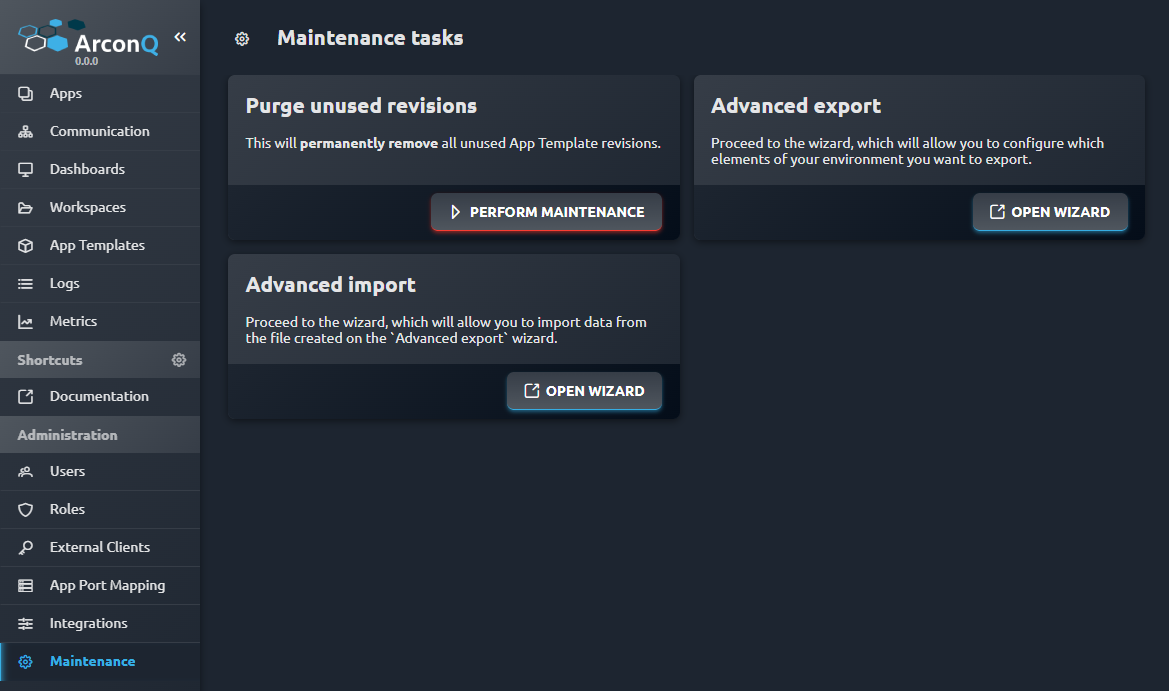
Ensure you are logged in with administrative privileges to the ArconQ. This is a powerful solution, that can affect your whole cluster, hence it's restricted to users with such privileges only and is available from ArconQ's UI on the Administration - Maintenance page:
Export
Step 1: Workspaces
In the first step you can specify which workspaces you want to export:
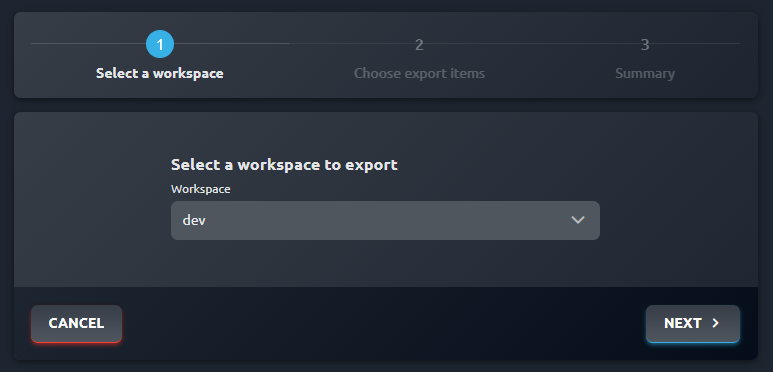
At this point, you can export only one workspace, but we are planning to extend that functionality to multiple workspaces in upcoming releases.
Step 2: Export items
In the second step you can select which parts of your environment you would like to export:
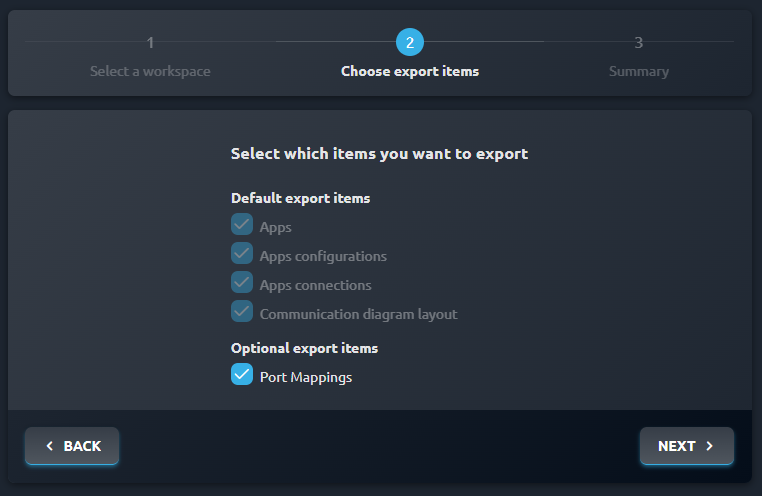
As you can see, there are a few basic items, that are always exported (the same ones, that are exported in the basic import/export mechanism). However, here you can also select optional items, that will be a part of a created export file.
Right now, the only additional export items are app port mappings, but we are planning to extend that functionality in upcoming releases.
Step 3: Summary
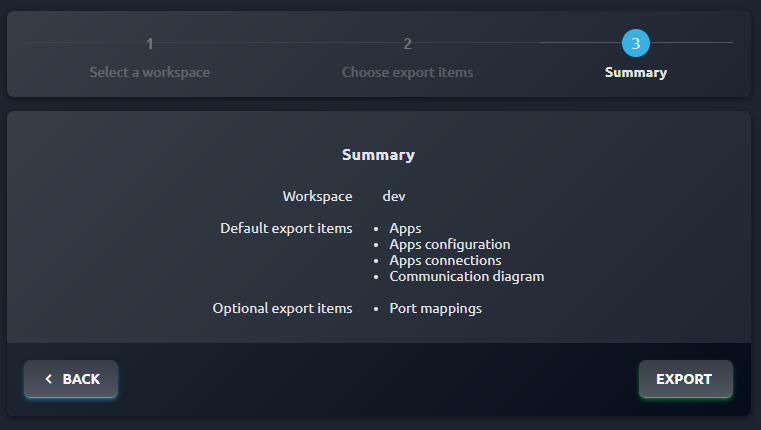
In the last step, you can see a summary of your export configuration. Here you can select the Export button and start the download of your export file.
Import
When you proceed to the Advanced import tab a popup will be opened:
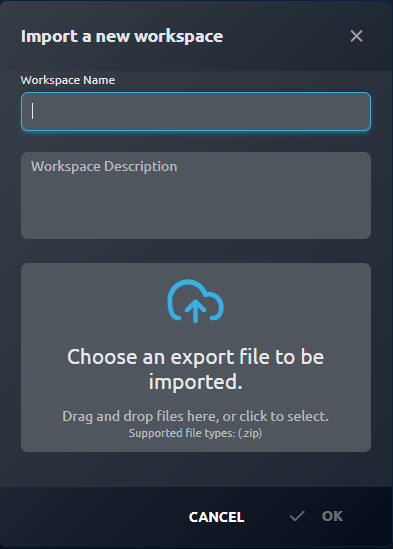
It allows you to create a new workspace with the export file created in the previous step.
At this point, you can import only one workspace, but we are planning to extend that functionality to multiple workspaces in upcoming releases.