Packing App code
In this article the process of preparing your ArconQ application to be used as App Template is described.
Preparing App files
We assume that you have written your App. If not, click here for some guidance.
After finishing implementation of your App logic, you have to prepare it to be able to upload it with ArconQ UI.
Preparation of your App files can vary depending on framework you've written your App with.
.NET 6
Building your App
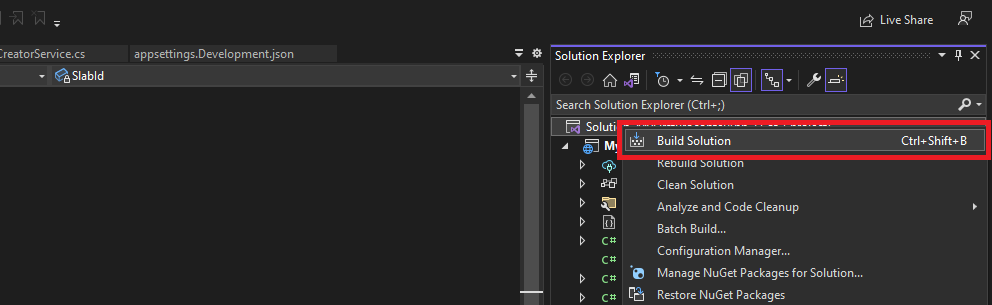
In .NET 6 app is build by right-clicking on solution file in Solution Explorer and clicking Build solution button (or using Ctrl+Shift+B keyboard shortcut). For complex applications we recommend to use publish command - dotnet publish
Packing your App
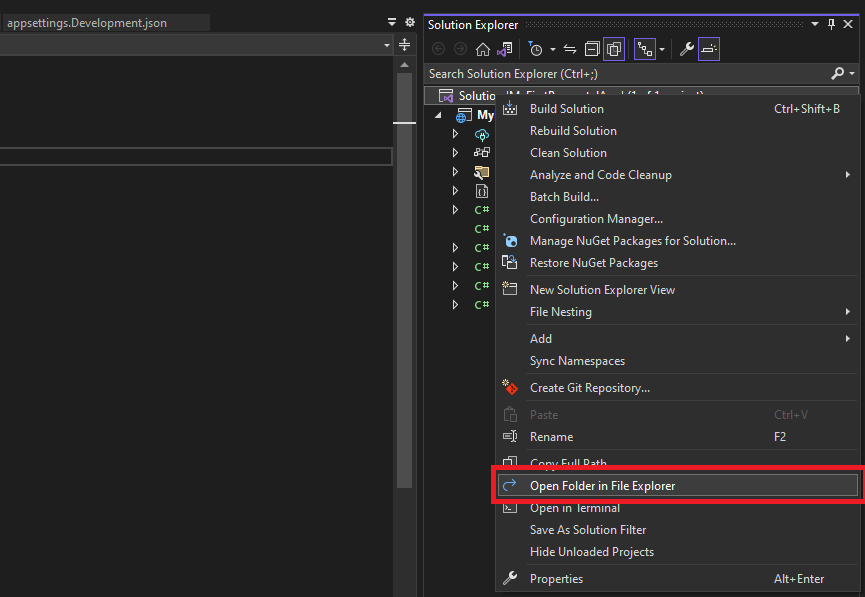
After successful build, right-click on solution file and click Open Folder in File Explorer
Next you should navigate to AppProjectName\bin\**Debug**\net6.0
If you have built your App using "Release" configuration your path should have Release instead of Debug like in example above.
Navigating to this folder will result in showing all of the files which were made during build process. Select all of them and compress them using your file archiving software or built-in Windows one.
It is the best practice to name your archive like the *.dll file of your build. In our example it would be MyFirstArconQApp.zip
Uploading App Template
Process of uploading your App is described here.