Deploying and running an App
This section outlines the process for deploying your App Template on the ArconQ platform and initiating its usage by creating an App from it.
Uploading App Template
To upload your App Template to the ArconQ platform, ensure that you have the ArconQ CLI installed and configured on your system. The process is straightforward, especially if your project includes the necessary .arconq file in its root directory. Projects created from the ArconQ project template already include this file. Feel free to open and adjust the configuration as needed.
To publish your App Template, open a command line interface in the root directory of your project and execute the following command:
arq push
This command will push your code with the configuration specified in the .arconq file. You can also customize the push operation with additional parameters. For more details, refer to the CLI's push command documentation.
Using the ArconQ UI to upload an App Template
Alternatively, you can push the App Template using ArconQ graphical UI.
To add your App Template using the UI, you need an archive containing the executable files. The process is described in the Packing App code article.
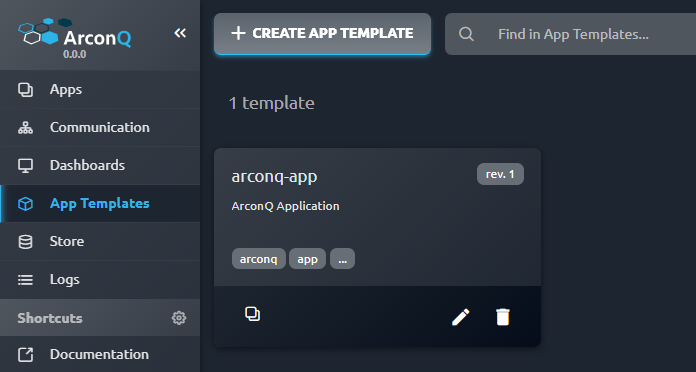
In the ArconQ UI, navigate to the App Templates page and click the Create App Template button at the upper left of the page.
In the first step of the wizard, select a Project Type that matches your App's technology to optimize ArconQ for it. If none of the existing choices match your project, select "Custom". Click Next to continue.
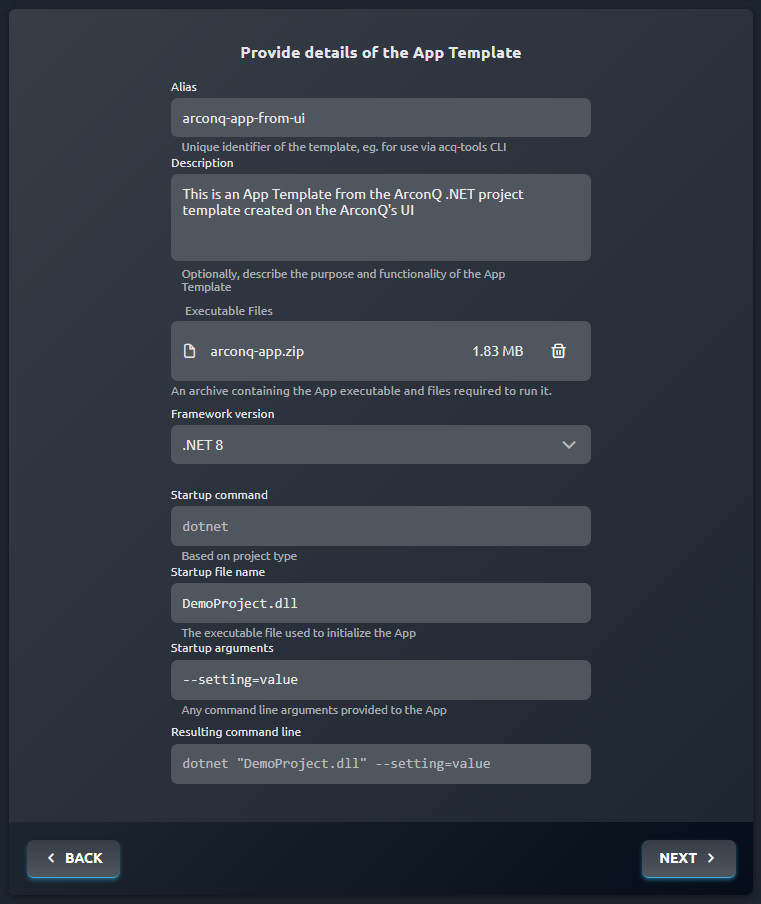
In the second step, provide a meaningful Alias for your new App Template. The alias should be unique across the platform and can only consist of lowercase letters, numbers, and hyphens. Optionally, you can provide a Description as well.
Upload an archive with executable files. Click the App Files Archive field to select a file, or drag and drop it into the field. This archive must be in
.zipformat and should contain all the necessary files required to host and run your App instance. For example, this could be the contents of the publish folder after executing thedotnet publishcommand (go to Packing App code article for details).cautionPlease make sure, that executable files are in the root directory of the
.zipfile - nested folders will cause an error.Provide additional settings required to configure the App Template based on your chosen Project Type:
- In the Startup File Name field, specify the executable file name used to run your App. This usually contains your App's
.dllfile. - In the Startup Arguments field you can provide optional arguments for your program, e.g.
--setting=value.
tipThe complete command used to start your App will be displayed at the bottom of the wizard, e.g.,
dotnet "DemoProject.dll" --setting=value.- In the Startup File Name field, specify the executable file name used to run your App. This usually contains your App's
In the third step, you can provide the default configuration for your App Template. Please refer to the App configurations article for details.
In the last step you can see the summary of your settings. If everything looks good don't hesitate to click the Create App Template button.
Creating an App
Once you've written, built, packed, and pushed your code to ArconQ as an App Template, you're ready to create an App. Here's how:
Go to the Apps page:
Start creating your App:
- With your Workspace ready, click one of the Create App buttons:
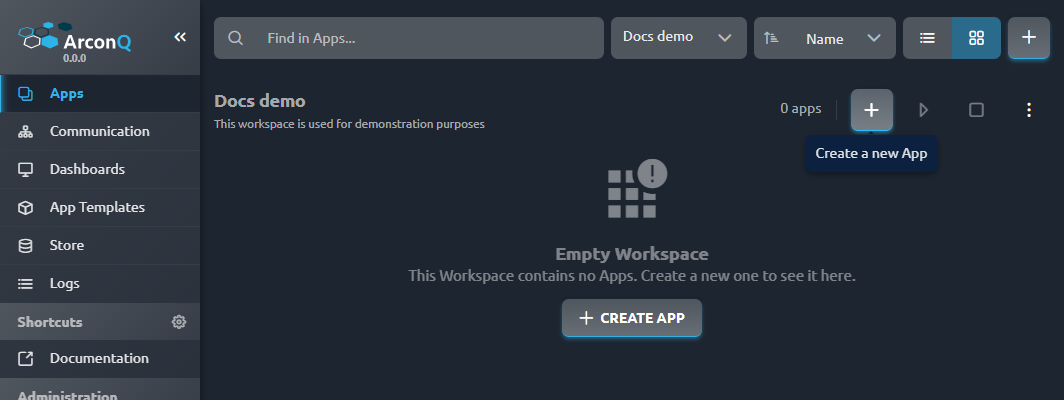
- With your Workspace ready, click one of the Create App buttons:
Choose an App Template:
In the first step of the wizard, pick an App Template and hit the Next button.
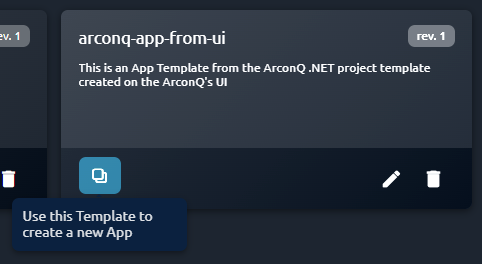
Alternatively, from the App Templates page, you can start the App creation wizard by clicking the Use this Template to create a new App button:
Fill in App Details:
- In the second step, enter details like a unique app alias, app display name, optional description, and minimum logs level. Click Next to continue.
Configure Your App:
- In the third step, add any specific configurations for your App. Check out the App configurations article for more details.
Review and create:
- Finally, in the last step you can review your settings. If everything looks good, click the Create App button to finish.
Running your App
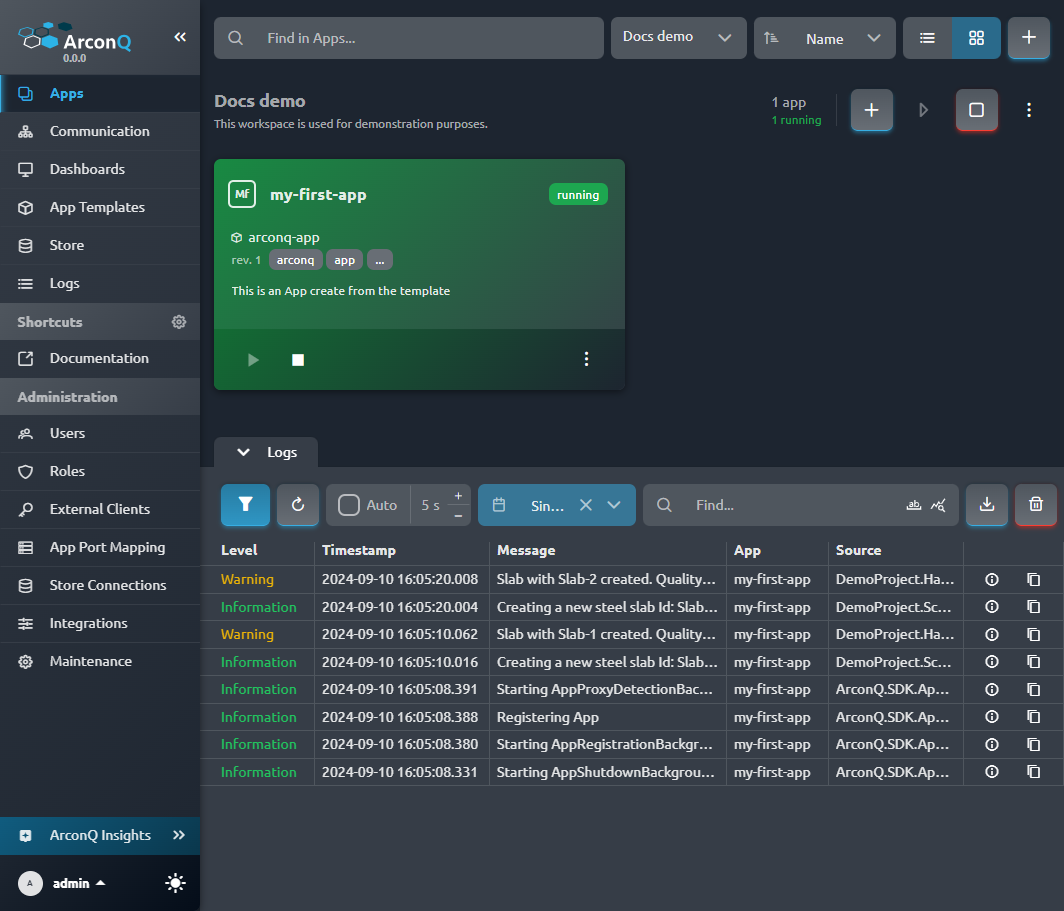
Great job! If everything went smoothly, you should see your new App listed. Go ahead and click the Start button. Once your App is up and running, you should start seeing log messages: