Managing App Templates
In ArconQ, you can manage App Templates, which are pre-configured blueprints that can be used as a basis for creating new Apps. This document will guide you through the various features of managing App Templates.
Browsing App Templates
To browse App Templates, follow these steps:
- Open the ArconQ UI.
- From the sidebar, click on "App Templates" shown under "REPOSITORY".
- Browse, search and sort the list of available App Templates.
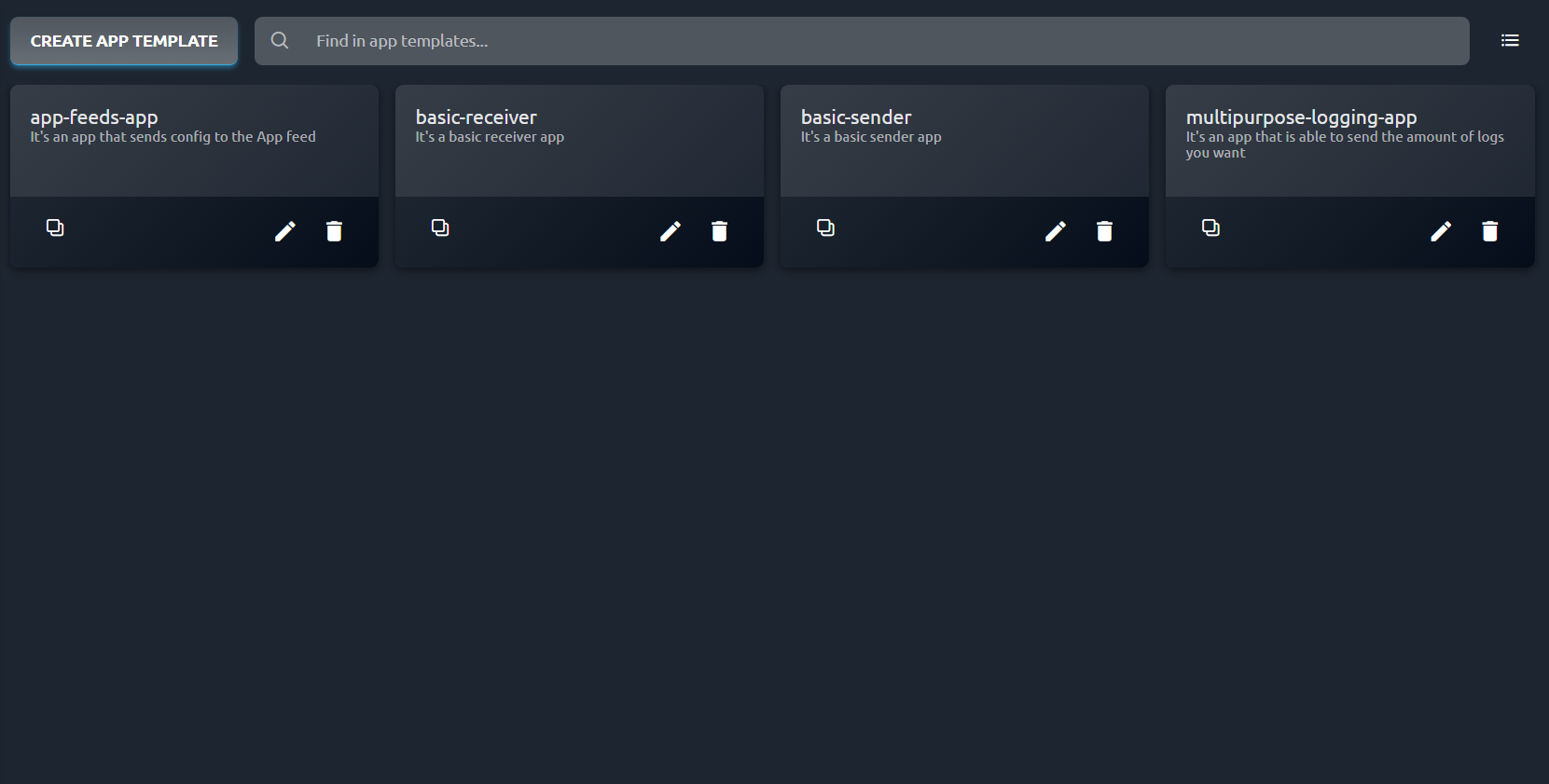
Creating App Templates
Click CREATE APP TEMPLATE to enter the App Template creation wizard.
To learn how to create your first App Template, read: Uploading App Templates
Viewing and editing App Templates
For a detailed view of an App Template, follow these steps:
- Browse the list of available App Templates.
- Click on the name of the App Template you want to view.
- The App Template Manager will show you the current details about the App Template, including its name and alias, the list of apps currently using this Template, the startup commands and the configuration.
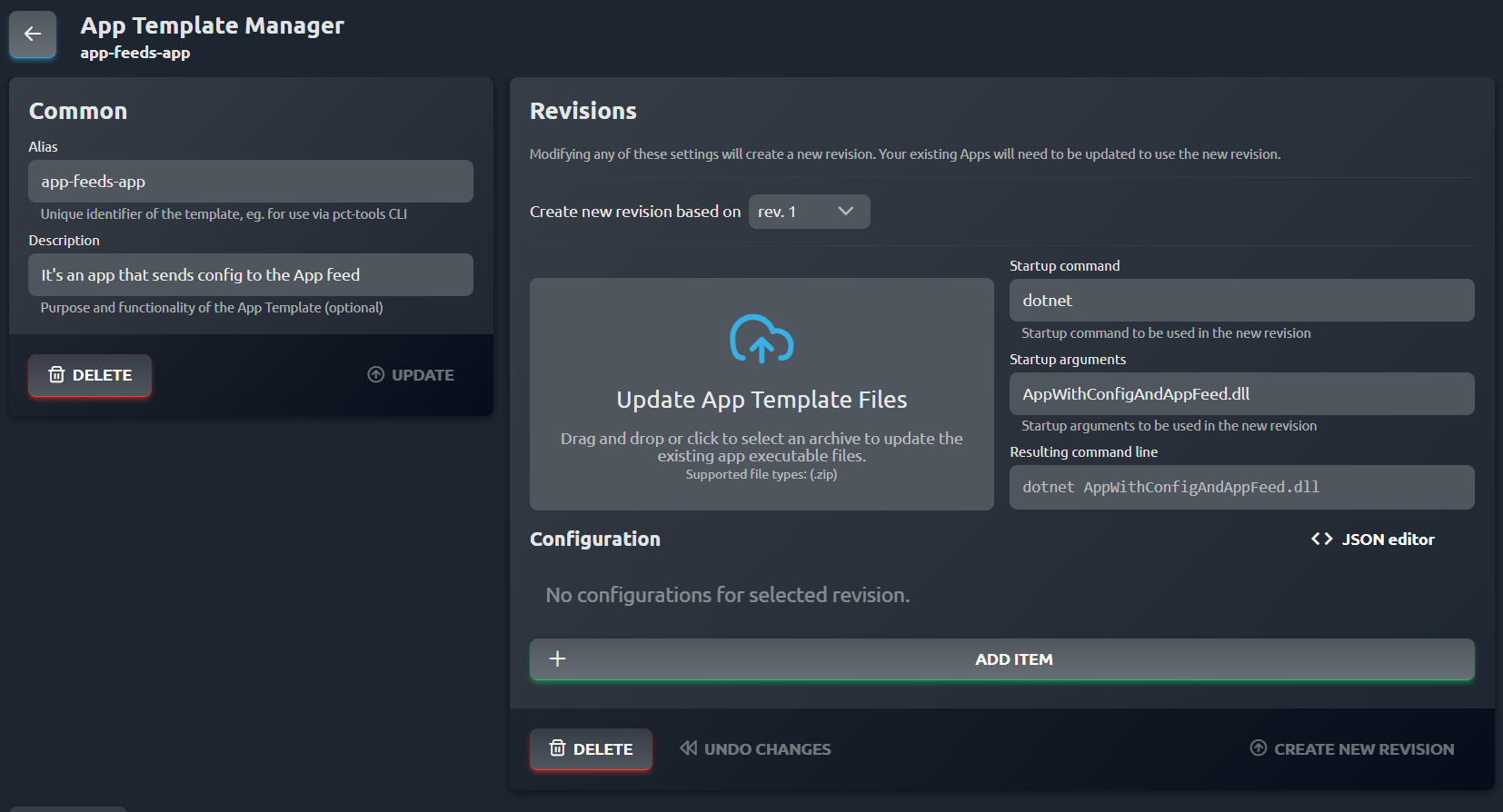
Editing common App Template settings
You can modify the Template Name and Alias from the Common section of the App Template Manager.
An alias is the Template's unique identifier across your ArconQ instance. You will not be able to change it to an existing alias.
Remember to save your changes by clicking the UPDATE button.
Changing template files, startup commands and settings
The App Template Manager allows you to modify these aspects of an App Template by creating an App Template Revision.
To learn more about App Template Revisions, read: App Template Revisions.
Deleting App Templates
Deleting a template will remove it from the App Templates list and make it impossible to create Apps with it. To delete an App Template, follow these steps:
- Stop and delete all Apps using this App Template. The "Apps using this Template" list must be empty.
- From the Common section of the App Template Manager, click DELETE.
- Confirm the operation.
Checking which Apps use an App Template
To see which Apps use an App Template, follow these steps:
- Browse the list of available App Templates.
- Click on the name of the App Template you want to view.
- Scroll down to the "Apps using this Template" section.
- View the list of Apps that use the selected App Template. You will see a green upwards arrow icon next to apps that aren't using the latest Revision.