App configurations
App Configurations enable customization and configuration of applications through key-value pairs. This documentation details the current version of App Configurations, which incorporates JSON schema for validation and enhanced metadata handling.
Layers of the App configuration
Your App's configuration can be set up on 3 levels:
- in the code of your .NET project (via the
appsettings.jsonfile) - in the App Template settings
- in the App settings
Level 1: Base configuration in your App's code
The basic configuration is being defined in the appsettings.json file of your application. Please refer to the .NET documentation for further details. The configuration specified here can be overwritten from the level of ArconQ's UI in the App Template and the concrete App instance as described below.
Level 2: Overwriting configuration in the App Template
Base configuration can be overwritten and expanded in the process of creating a new app template. To overwrite the base configuration, we can specify items with the same key as the ones from the appsettings.json file and assign them a value of your choice.
For example: given that in appsettings.json we had a configuration like so:
{
  "max-connections": 100
  // some other properties
}
...we can easily override it by creating a configuration item with the same key but a different value:
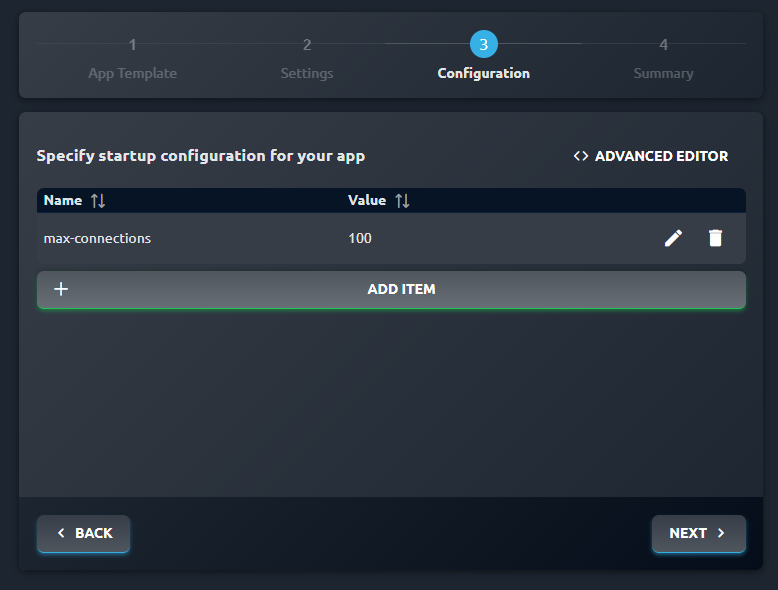
This configuration editor is available for you when creating a new App Template (from ArconQ's UI), as well as when editing an existing App Template.
Level 3: Overwriting configuration in the App
Similarly to the App Template upload process, you can provide configuration values while creating a new App:
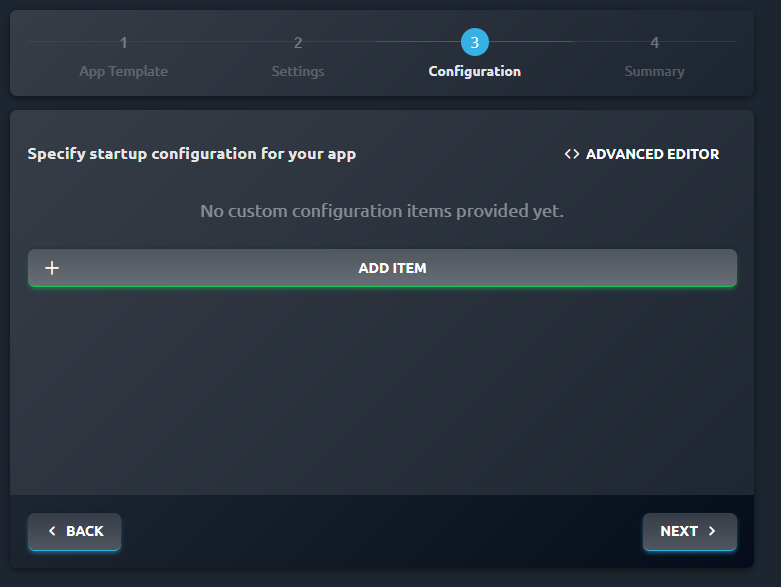
... as well as when editing an existing App.
If you're curious about what the JSON editor button visible in the screenshot above does or how to provide values for complex objects, it will be explained later in this article.
Configuration inheritance
You might be wondering right now how those different places for App configuration work together, which one will be used eventually when all of them are specified, and so on. We'll explain it in this section.
Generally speaking configurations priority goes like this: appsettings.json < App Template < App:
Everything provided in your App's code in the
appsettings.jsonfile is the base layer for all further configuration. Values specified here will not be displayed on ArconQ's UI but can be overwritten later.The configuration provided on the level of the App Template is like a blueprint of configurations for Apps that will be created based on that template: all values specified here will be copied when creating a new App based on that template and can be tweaked there as well.
You can fine-tune the configuration for a specific App instance to best suit your needs. Just like you can create multiple Apps based on one App Template, you can have a common set of rules defined in the App Template but still have the possibility to modify them for a concrete App instance.
Managing Configurations
Overview
App Configurations use JSON schema to define and manage application settings through detailed metadata, such as descriptions, types (int, bool, string, array, unspecified), optional/required status, default values, and sensitivity. When building an application using the CLI with a provided schema file, configurations are validated against the schema. Within the UI, validation occurs based on the provided schema, ensuring data integrity and adherence to defined constraints. Sensitive configurations are masked by default for security, with an option to reveal them by clicking an eye icon. The Basic Editor prevents the deletion of required fields and facilitates the adding, viewing, editing, and deleting of configurations with real-time validation based on the JSON schema. The JSON editor offers a robust environment for handling configurations as JSON objects, enabling easy sharing, copying, and improved readability. This allows users to work with configurations directly in their IDEs, using familiar JSON syntax and tools.
App Template Manager
Configurations can be created in the App Template Manager. The JSON schema is defined when adding configurations to an app template. Additional configurations can be added, and a new app template revision can be created with these new configuration fields. Once the new revision is available, applications can upgrade to this revision to utilize the new configurations.
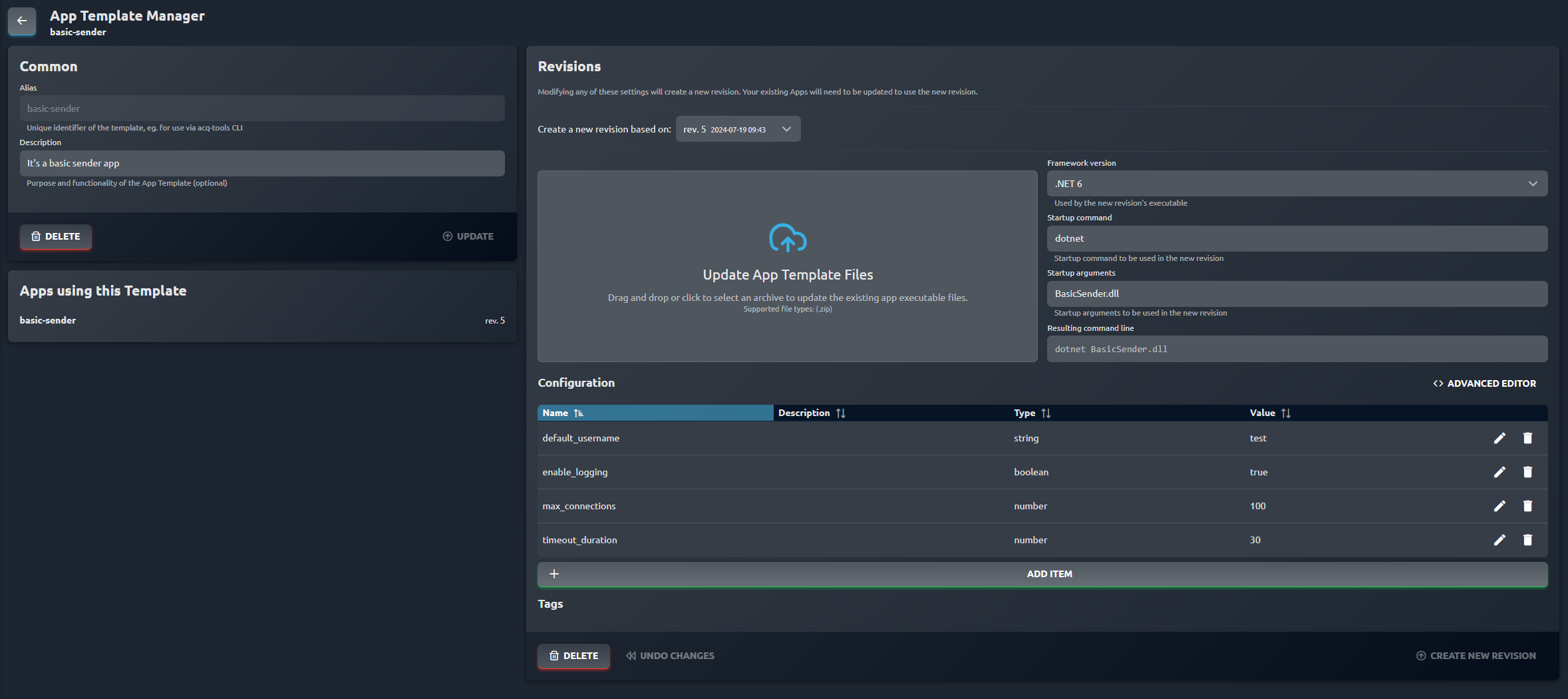
Adding a Configuration
To add a configuration in the App Template Manager:
- Define the configuration key and value.
- Provide a display name, description, and specify the type (string, number, boolean or unspecified).
- Indicate if the field is required or contains sensitive information.
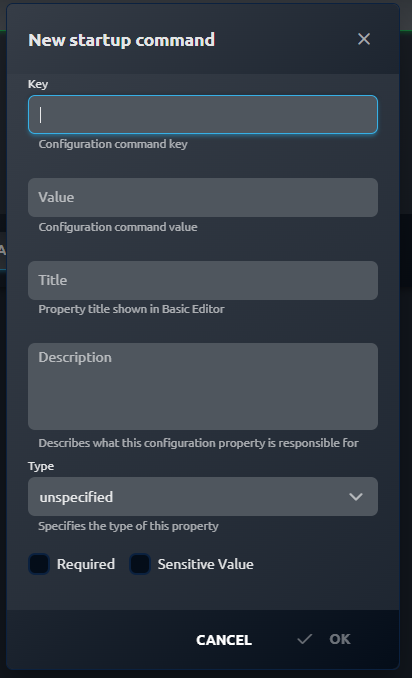
How editor works
- Basic Editor: Allows adding, viewing, editing, and deleting configurations, with real-time validation based on the JSON schema. It displays descriptions and validates configurations as they are entered.
Given that our basic configuration was a nested object, e.g.:
{
  "MyBasicConfiguration": {
    "MyFirstItem": {
      "ActualConfig": "false"
    }
  }
}
We could override that configuration like this:
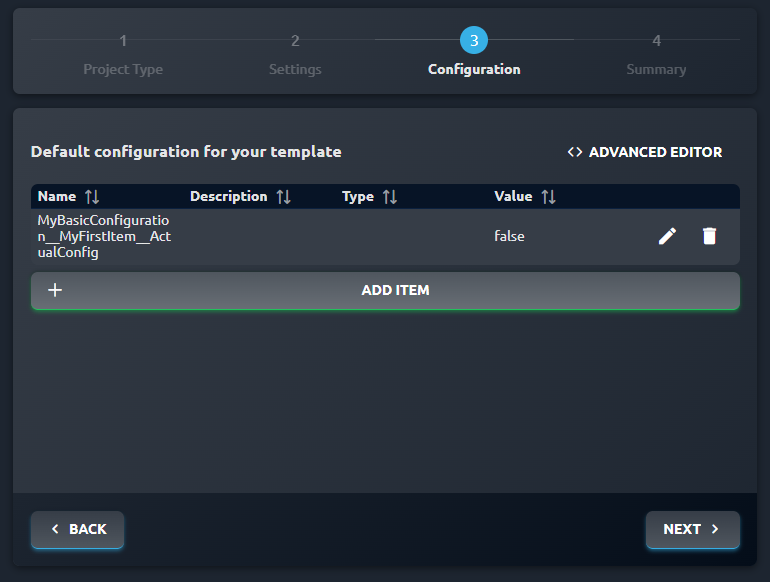
As you can see, each level of nesting is accessed here by __ (double underscore).
If you'd like to have an array of items, you need to specify each of them by appending a key (array name), the : separator, and then provide the index number, for example: arrayName:0, arrayName:1 and so on.
Below you can see an example of a complex configuration that contains objects, arrays, nested arrays, etc.:
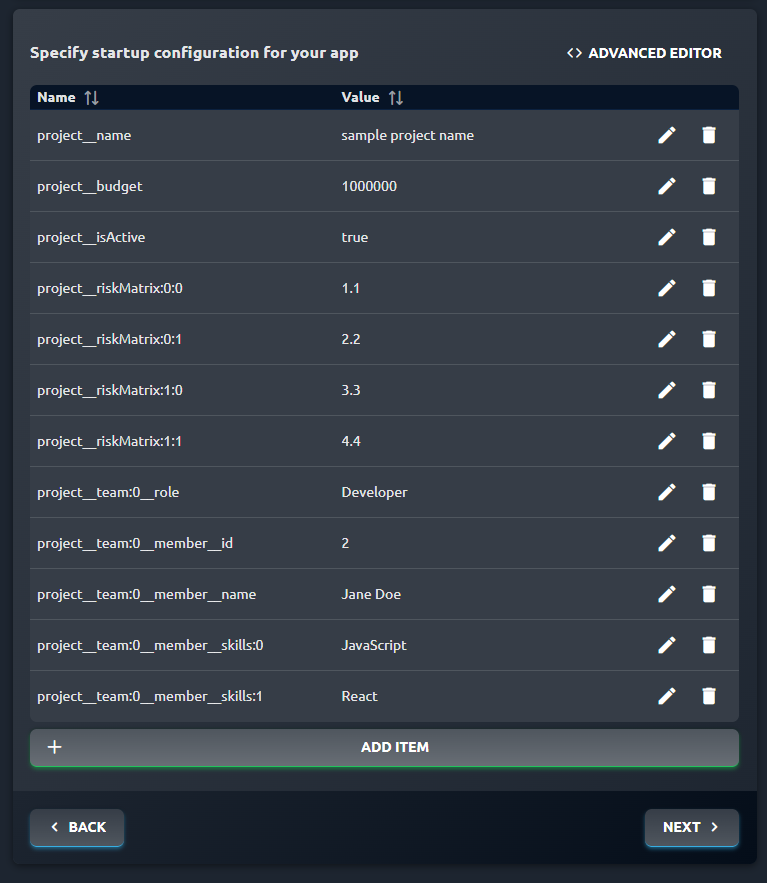
The JSON that corresponds to that config looks like this:
{
  "project": {
    "name": "sample project name",
    "budget": "1000000",
    "isActive": "true",
    "riskMatrix": [
      [1.1, 2.2],
      [3.3, 4.4]
    ],
    "team": [
      {
        "role": "Developer",
        "member": {
          "id": "2",
          "name": "Jane Doe",
          "skills": ["JavaScript", "React"]
        }
      }
    ]
  }
}
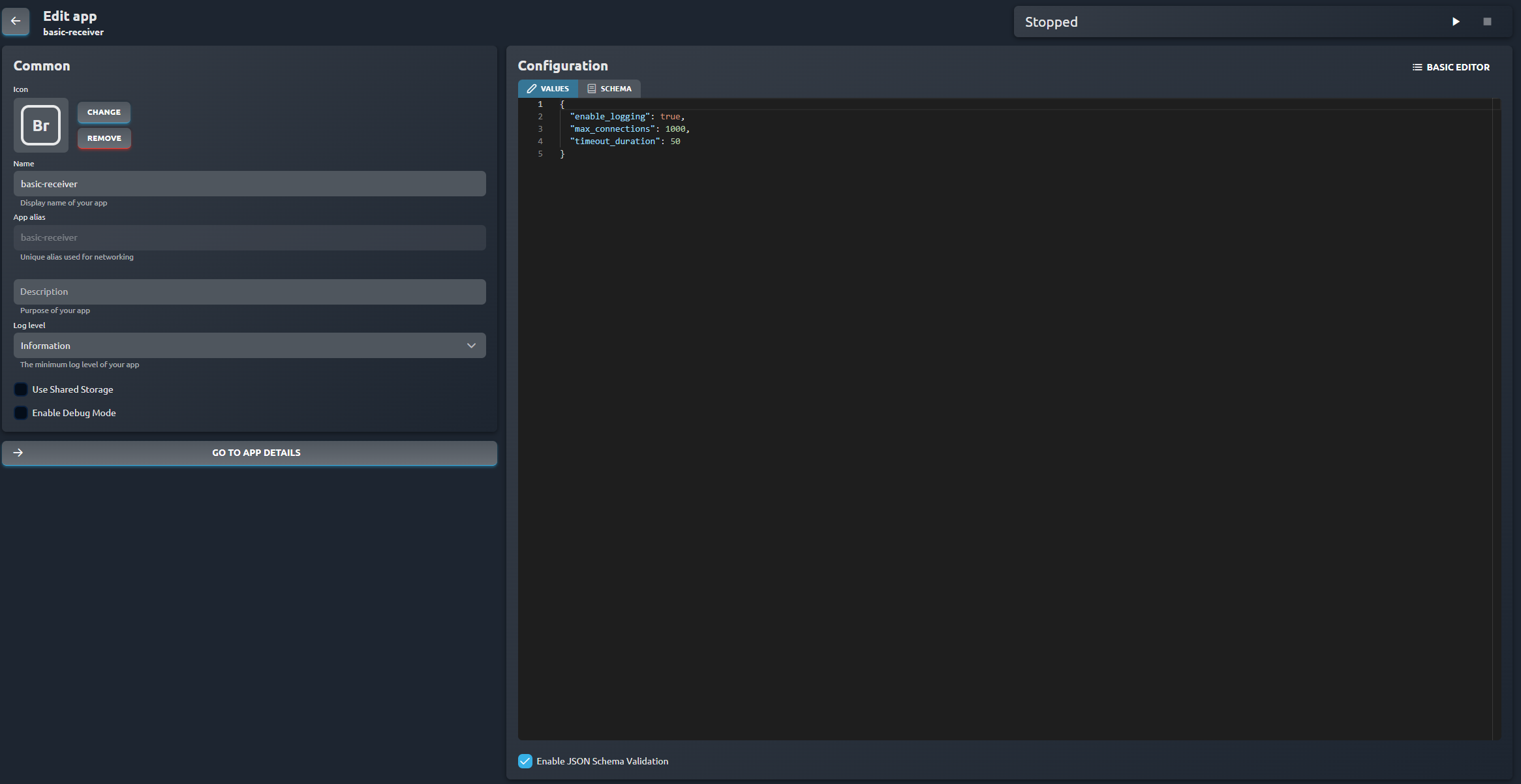
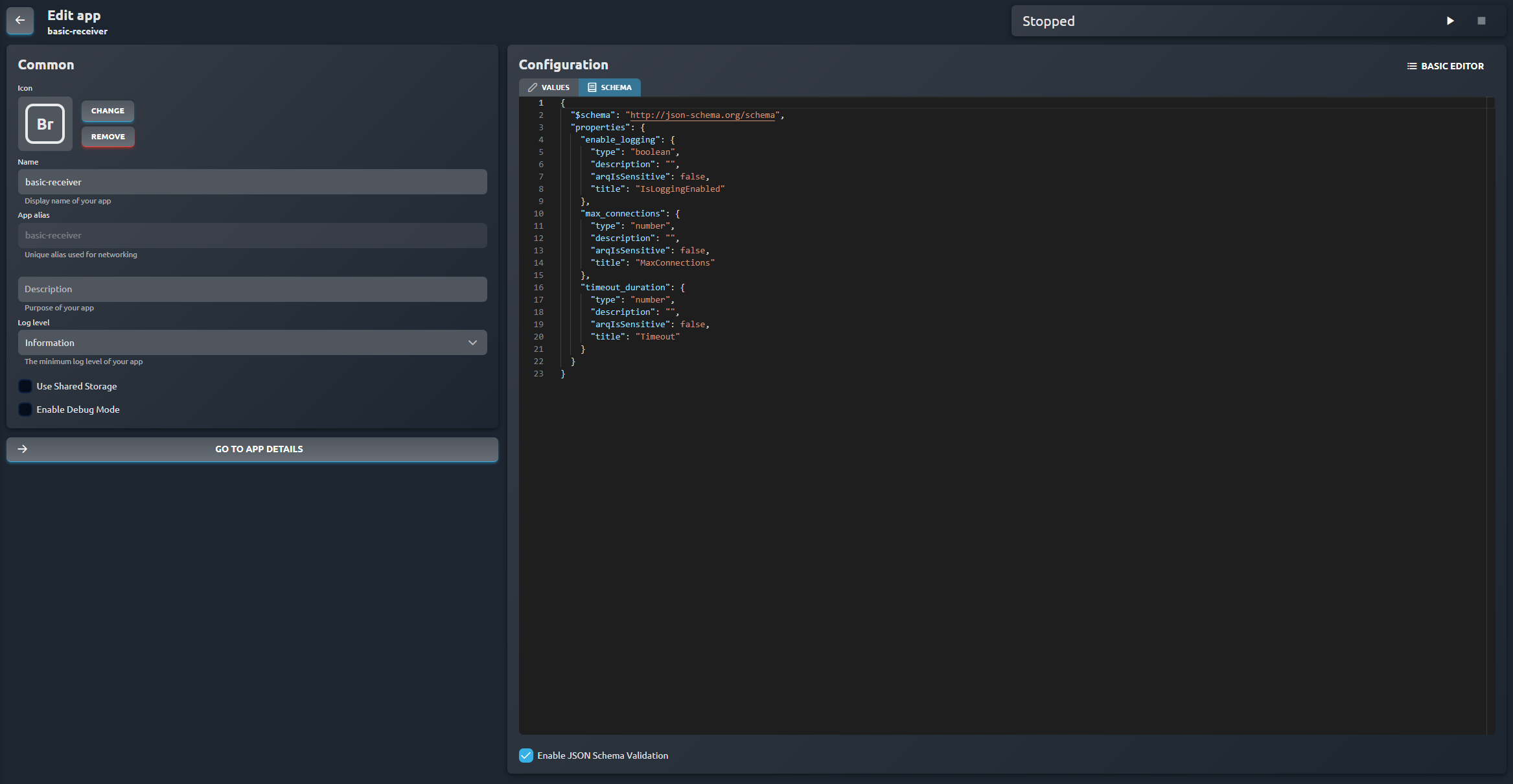
- Advanced Editor: Provides a detailed view of configurations and allows switching between configuration values and JSON schema, validating configurations upon opening and during editing.
The editor uses Monaco editor (the one that powers Visual Studio Code) so any Visual Studio Code keyboard shortcuts you know are also valid in our JSON editor!
JSON Schema Properties
The system fully supports all standard JSON schema validation properties. Additionally, it incorporates custom properties introduced specifically in ArconQ.
Custom Properties
- arqIsSensitive: Indicates if the configuration contains sensitive information.
Displayed Schema Validation in Basic Editor
In the Basic Editor, the following schema validation properties are shown:
- Description: Provides additional context for the configuration field.
- Type: Displays the expected data type (string, number, boolean, etc.).
- Required: Indicates if the configuration field is mandatory.
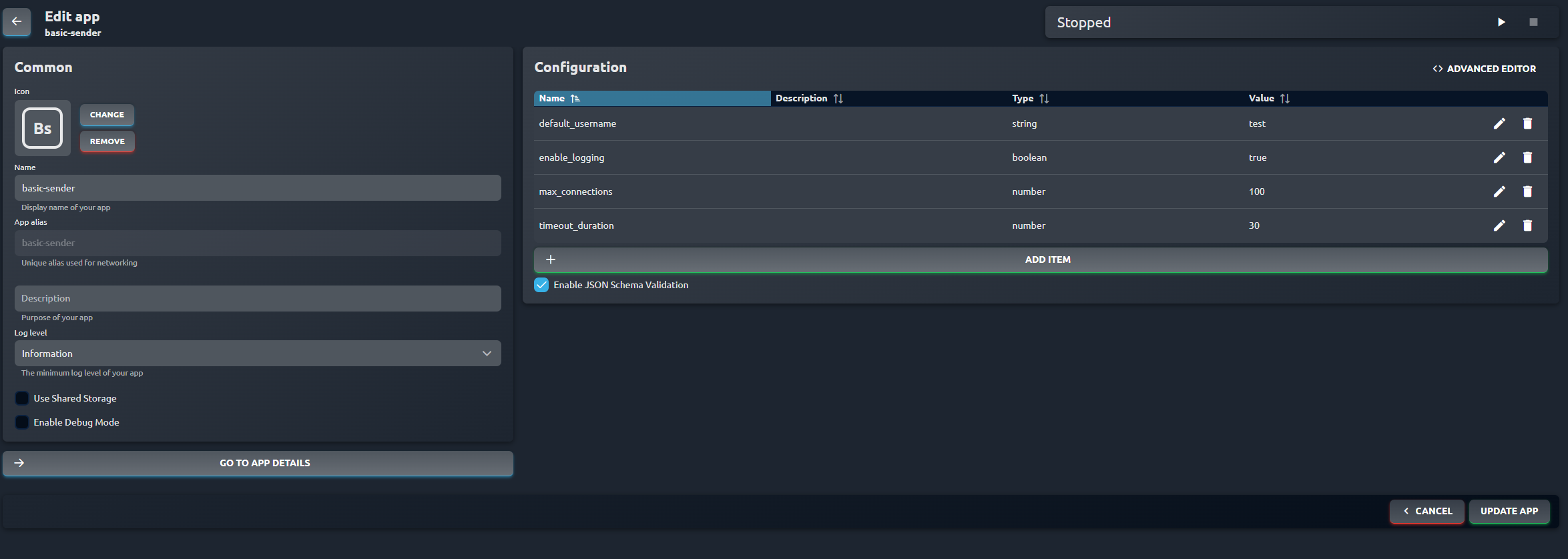
Application Settings
Configurations can also be managed in the application's settings. Users can add a new configuration field by specifying:
- Key
- Value
Handling Sensitive Information
Sensitive configurations are masked by default. Click the eye icon to reveal the information if necessary.
CLI Operations
CLI commands support providing a JSON schema file to validate configurations during the app build process. To utilize this feature, users must add the configFile and configSchemaFile to their .arconq file, specifying the paths to the app configuration and its schema.This ensures the configuration is validated against the schema during the build process.
load-measurement-sender:
    description: It's an app that gathers metrics from sending messages and logs
    runtime: dotnet8
    configFile: ./LoadMeasurementSender/config.json
    configSchemaFile: ./LoadMeasurementSender/config-schema.json
    build:
      project: ./LoadMeasurementSender
      output: ./LoadMeasurementSender/bin