Updating Apps
Updating an App is a straightforward process that ensures it remains up-to-date with the latest features and fixes. To update an App in ArconQ, follow these simple steps:
Create a New App Template Revision: Begin by creating a new App Template Revision with the updated configuration, files, and arguments you want to apply to your App. This can be done through the App Template Manager as described here: App Template Revisions.
Stop the App: The App must be stopped before you can change its Template's Revision. This can be done through the Apps section - simply click the ■ button from the Apps view.
Open App Details View: Click on the app you want to update to open the App Details view.
Change Revision: In the App Details view, click on the Change Revision button.
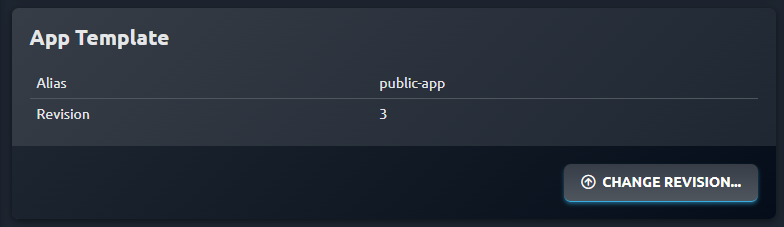
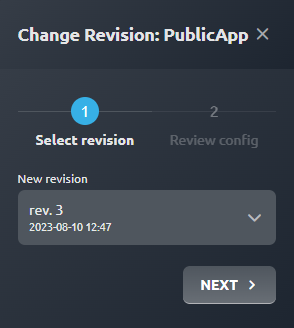
- Select New Revision: A window will appear where you can select the new revision you want to update (or downgrade) your app to. Choose the desired revision and click NEXT.
- Review Configuration: The updated configuration will appear, which is a merge of new configuration items with the existing ones. Review the changes carefully to ensure they meet your requirements.
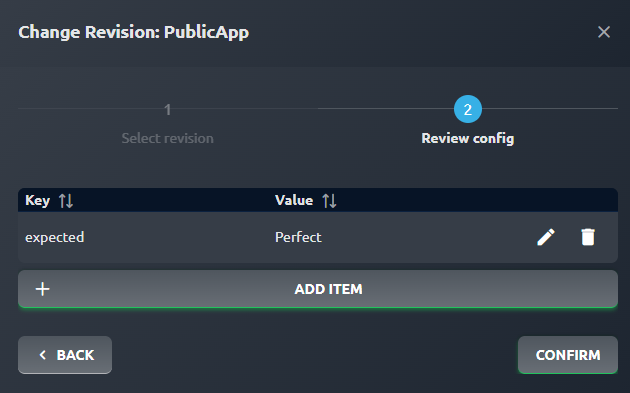
- Confirm Update: If everything looks good, click CONFIRM to finalize the update process. Your app will then be updated to the new revision you selected.
After performing these steps, you can start your App to make use of the new Revision.