Creating an App Template
App Template is the blueprint for creating Apps inside ArconQ. With this blueprint, we can create instances of our App inside the ArconQ platform. One blueprint can be used to create an unlimited amount of Apps that realize logic implemented in an App Template.
This section guides you through the process of creating a simple App Template.
Using ArconQ .NET project templates
In the previous step, we installed ArconQ .NET project templates. We will now use them to create a new App Template.
Using templates in Microsoft Visual Studio
- Open the Create new project dialog using the keyboard shortcut Ctrl+Shift+N or from the menu: File -> New -> Project...
- Search for the template using the keyword "ArconQ" by name or project type.
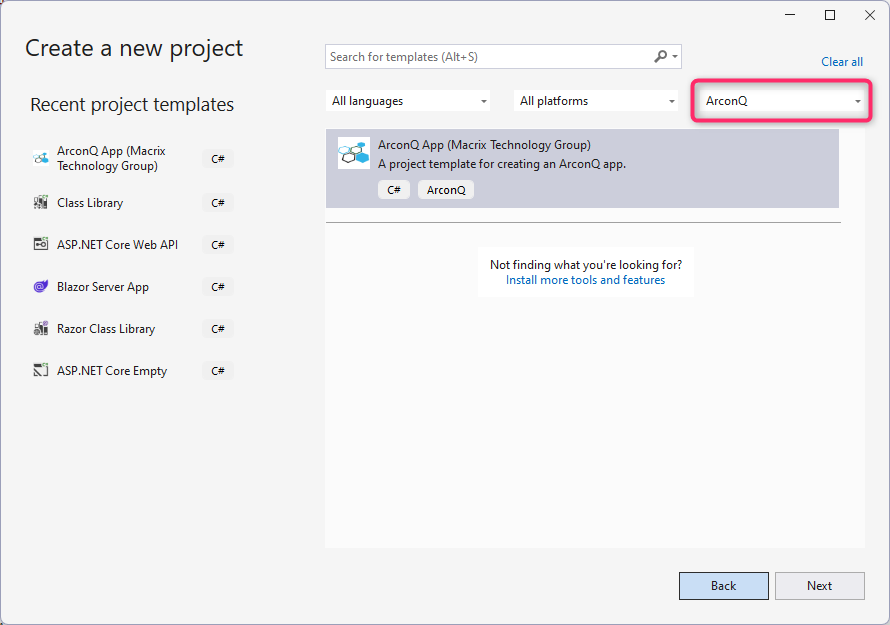
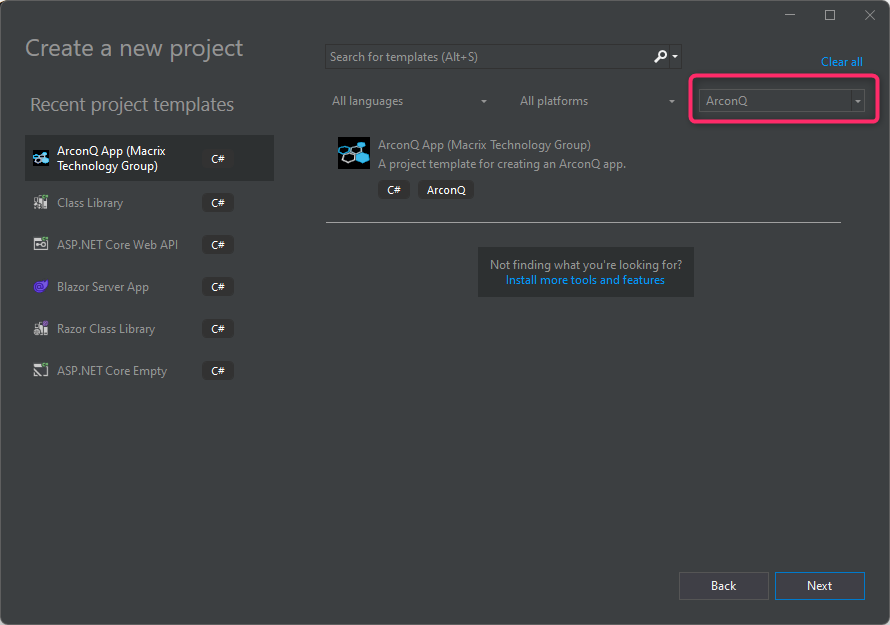
- Select the found template and fill out the first screen according to your preferences.
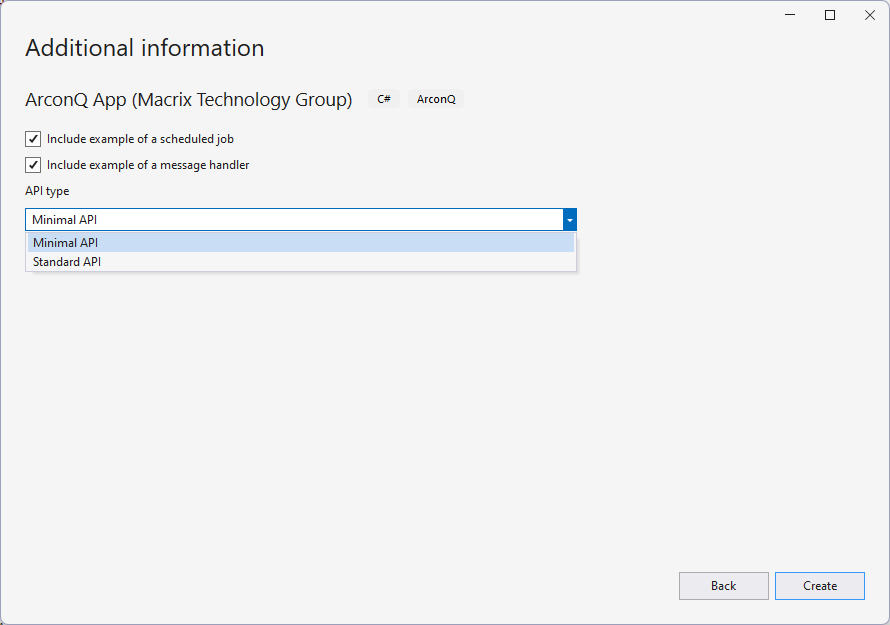
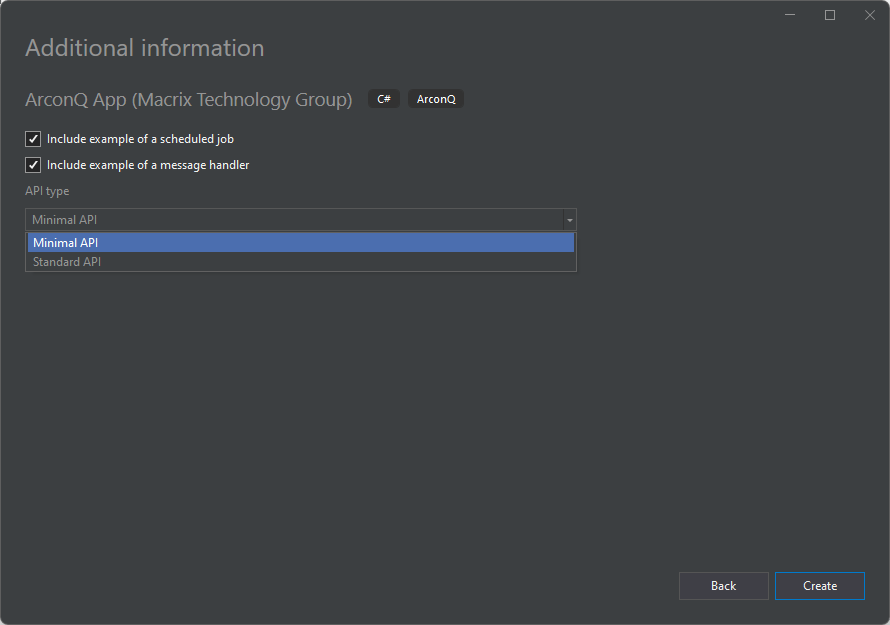
- On the second screen, you will find options:
Using templates via CLI
You can create a project using the template from the command line with the dotnet tool. To list available options, run the following command:
dotnet new arconq-app --help
You should see output similar to the one below:
ArconQ App (C#)
Author: Macrix Technology Group
Description: A project template for creating an ArconQ app.

Usage:
  dotnet new arconq-app [options] [template options]

Options:
  -n, --name <name>       The name for the output being created. If no name is specified, the name of the output directory is used.
  -o, --output <output>   Location to place the generated output.
  --dry-run               Displays a summary of what would happen if the given command line were run if it would result in a template creation.
  --force                 Forces content to be generated even if it would change existing files.
  --no-update-check       Disables checking for the template package updates when instantiating a template.
  --project <project>     The project that should be used for context evaluation.
  -lang, --language <C#>  Specifies the template language to instantiate.
  --type <project>        Specifies the template type to instantiate.

Template options:
  -G, --GenerateScheduledJob     Type: bool
                                 Default: true
  -Ge, --GenerateMessageHandler  Type: bool
                                 Default: true
  -A, --API <minimal|standard>   Type: choice
                                   minimal   Create application using simplified syntax
                                   standard  Using the traditional WebApplicationBuilder approach
                                 Default: minimal
This provides details on how to use this tool. Try running the following command to create a new project named DemoProject, which we will use later in this tutorial:
dotnet new arconq-app --name DemoProject --API minimal --GenerateScheduledJob=true --GenerateMessageHandler=true
Template options
For details on what the different template options stand for and how they differ, please refer to the articles in the Reference section of this documentation:
- API - Minimal API vs Standard API
- GenerateScheduledJob - Scheduling
- GenerateMessageHandler - Messaging
Inspecting the code
Minimal API
If you created a new project from the ArconQ template using the --API minimal option, as shown above, you should see in the Program.cs file a code similar to the one below:
// Bunch of using statements

await ArconQApp.StartAsync(args,
    services =>
    {
        services.AddScoped<ISlabCreatorService, SlabCreatorService>();
        services.AddScheduledJob<SlabCreatorScheduledJob>().WithIntervalSchedule(10, IntervalType.Seconds);
        services.AddMessageHandler<SlabCreatedMessageHandler, SlabCreatedMessage>();
    });
The only relevant code in this file is an awaited call to the static ArconQApp.StartAsync method. It will handle all required configurations for the App to run on the ArconQ platform in the background and lets you configure your services, just like a regular ASP.NET application.
In this example, you can see that we're registering one sample scoped service called SlabCreatorService. Both the AddScheduledJob and the AddMessageHandler are extension methods from the ArconQ.SDK, that allow you to add an scheduled job and a message handler to your App.
Standard API
If you would create a new project using a template with the Standard API (the --API standard option for the dotnet new arconq-app command), you should see in the Program.cs file a code similar to the one below:
// Bunch of using statements

var builder = WebApplication.CreateBuilder(args);

builder.WebHost.ConfigureArconQ(builder.Configuration);
builder.Services.AddArconQ(builder.Configuration);
builder.Services.AddScoped<ISlabCreatorService, SlabCreatorService>();
builder.Services.AddScheduledJob<SlabCreatorScheduledJob>().WithIntervalSchedule(10, IntervalType.Seconds);
builder.Services.AddMessageHandler<SlabCreatedMessageHandler, SlabCreatedMessage>();

var app = builder.Build();
app.UseArconQ();
app.MapArconQ();
await app.RunAsync();
You can see here, that we must use a few of ArconQ's extension methods alongside the regular ASP.NET code. This gives you more control over the App creation, just like in the .NET's Standard and Minimal API approach.
You can read more about the differences between ArconQ's APIs in the Minimal API vs Standard API article.
Despite those differences, we use the same scoped service, scheduled job, and message handler as in the Minimal API project. Let's investigate the code from those services.
Sample services
A project created from the ArconQ project template with options --GenerateScheduledJob=true --GenerateMessageHandler=true is showcasing a simple messaging system:
- the
SlabCreatorServicecreates a message - the
SlabCreatorScheduledJobsends a message in a given time interval - the
SlabCreatedMessageHandlerreceives a message
Creating a message
The SlabCreatorService mocks the behavior of a service that is responsible for creating a steel slab in the factory - it has one public method, that returns a generated event about the slab being created:
public class SlabCreatorService : ISlabCreatorService
{
    private static int SlabId = 1;

    public SlabCreatedMessage CreateSlab()
    {
        return new SlabCreatedMessage(
            $"Slab-{SlabId++}",
            "Steel slab has been created",
            (SteelGrade)new Random().Next(0, 3));
    }
}
What's important to notice is the type that the CreateSlab method returns - SlabCreatedMessage - this is the same type we registered in our SlabCreatedMessageHandler. But here we're only creating a simple event, let's jump into our scheduled job to see how we can send messages.
Sending a message
To make a class compatible with the ArconQ.SDK's AddScheduledJob extension method, it must implement the ArconQ.SDK.Scheduling.IScheduledJob interface, which has only one method: Task RunAsync():
public class SlabCreatorScheduledJob : IScheduledJob
{
    private readonly ILogger<SlabCreatorScheduledJob> _logger;
    private readonly ISlabCreatorService _slabProducerService;
    private readonly IMessageBus _messageBus;

    public SlabCreatorScheduledJob(ILogger<SlabCreatorScheduledJob> logger, ISlabCreatorService slabCreatorService, IMessageBus messageBus)
    {
        _logger = logger;
        _slabProducerService = slabCreatorService;
        _messageBus = messageBus;
    }

    public async Task RunAsync()
    {
        var slab = _slabProducerService.CreateSlab();
        _logger.LogInformation("Creating a new steel slab Id: {SlabId} Description: {SlabDescription}, Grade: {SlabGrade}", slab.Id, slab.Description, slab.Grade);
        await _messageBus.PublishAsync(slab);
    }
}
In the SlabCreatorScheduledJob example you can see how to send messages: inject to your class a service of type ArconQ.SDK.Messaging.IMessageBus and use one of its PublishAsync method overloads.
Now we know how to create and send messages in ArconQ, let's jump into the SlabCreatedMessageHandler to see what message handling looks like.
Receiving a message
The type of message used in the sending and receiving class must be the same - including the namespace. You can read more about it in the Messaging article.
To make a message handler class work in ArconQ it must implement the ArconQ.SDK.Messaging.IMessageHandler<TMessage> interface, which has only one method: Task HandleAsync(TMessage message), where the TMessage is the a type of the message that you're sending:
public class SlabCreatedMessageHandler : IMessageHandler<SlabCreatedMessage>
{
    private readonly ILogger<SlabCreatedMessageHandler> _logger;

    public SlabCreatedMessageHandler(ILogger<SlabCreatedMessageHandler> logger)
    {
        _logger = logger;
    }

    public async Task HandleAsync(SlabCreatedMessage message)
    {
        await Task.CompletedTask;
        _logger.LogWarning("Slab with {MessageId} created. Quality: {MessageGrade}", message.Id, message.Grade);
    }
}
And that's all! In this simple example, we're sending and receiving messages in one App, but this can be implemented in separate Apps running across the ArconQ platform.