Shortcuts
The ArconQ UI allows you to easily create shortcuts to any URL. This way, you can integrate external interfaces right into the ArconQ console and easily switch between them. Shortcuts are always accessible from the left-side menu.
For your convenience, the ArconQ Documentation is provided as a shortcut by default.
Due to the Content Security Policy in modern browsers, shortcuts must be served over HTTPS and permit embedding via the X-Frame-Options header.
All ArconQ apps are set up this way by default.
Managing your shortcuts
To modify your shortcuts, click the gear icon: 
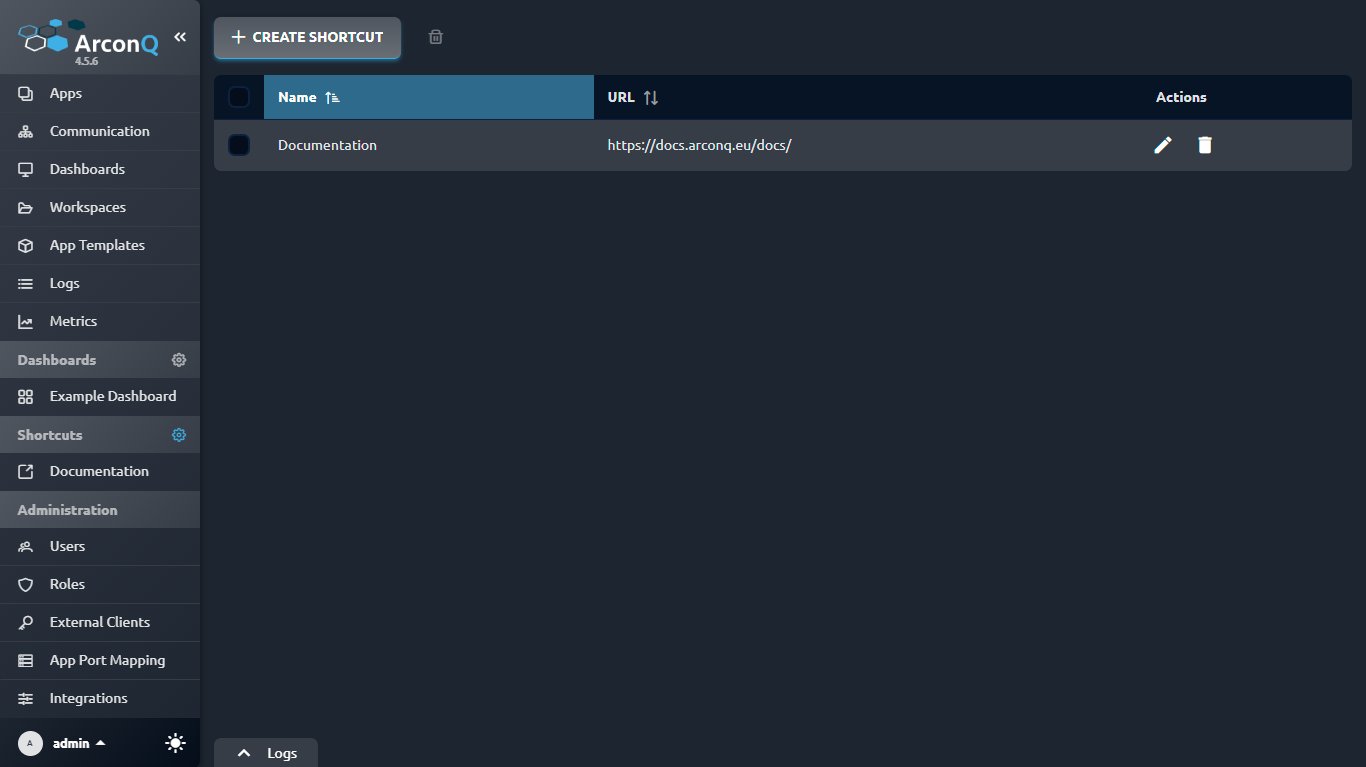
Adding a shortcut
- Click + CREATE SHORTCUT.
- Provide a name that will be displayed in the menu, as well as the URL.
- Click OK to create the new shortcut.
Editing shortcuts
- Click on the
 icon next to the shortcut you want to edit.
 - Adjust the name and URL accordingly.
- Click OK to save changes.
Removing shortcuts
To remove a shortcut, click the  icon next to the shortcut you want to remove, and confirm its removal. You can also select several shortcuts via the checkbox on the left side of the table and click the
  button to remove them all.