App Template revisions
An App Template revision is created whenever the user wants to change an existing App Template in one of the following ways:
- uploading new app assets and executable files,
- changing the startup command and arguments,
- changing the base app configuration.
You can keep track of changes to the App Template with Revisions, and you can use them to run various versions of the app using just one App Template.
You can manage the Revisions of your App Template via the App Template manager.
To learn more about the App Template Manager, read: Managing app templates
Creating a new Revision
To create a new revision:
Navigate to the App Template Manager for the App Template you wish to modify.
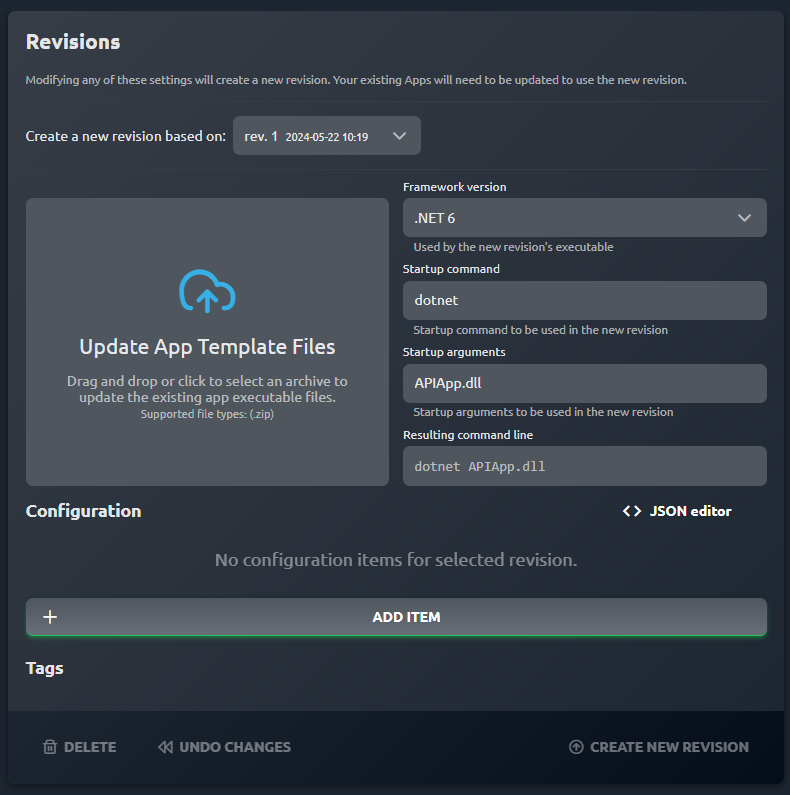
From the Create new revision based on: dropdown, select the revision you'd like to use as the starting point for the new revision.

Make any necessary changes to the startup commands and arguments, configuration, or app files.
 tip
tipIf you don't upload any files, the files from the previously selected revision will be reused.
In case you wish to reset your changes, click UNDO CHANGES to restore the form back to the state from the selected base revision.
Click CREATE NEW REVISION to confirm your changes and create a new revision.
cautionYou will need to update any existing Apps to use this revision. See Updating Apps for more information.
Deleting revisions
Deleting a template revision will remove it from the App Templates Revisions list and make it impossible to create Apps with it.
- Stop and delete all Apps using this App Template revision.
- From the Revisions section of the App Template Manager, click DELETE.
- Confirm the operation.