Setting up a development environment
This section covers the installation of essential tools to create and deploy your Apps to the ArconQ platform.
The ArconQ platform supports running any web application and is agnostic to both frontend and backend frameworks/languages. However, applications must expose a small set of API endpoints and provide access to built-in functionality via our REST API. To facilitate this, we have prepared a ready-to-use SDK in C# for .NET projects (ASP.NET framework apps).
A Python SDK for backend applications will be available soon. Developers are also free to implement their own SDKs for other languages or hardcode the required endpoints directly into their applications without using an SDK.
.NET setup
Installing .NET and IDE of Choice
To develop applications for the ArconQ platform using .NET, you need to have the .NET framework installed on your system. Detailed installation instructions can be found in Microsoft's official documentation.
ArconQ provides project templates to help you get started quickly. To make it easier to work with these templates, we recommend using an Integrated Development Environment (IDE). Visual Studio and Visual Studio Code are both excellent choices, supporting .NET development with the appropriate extensions.
Adding ArconQ SDK
The ArconQ.SDK is a NuGet package created by the ArconQ team, necessary for creating an app that can run on the ArconQ platform. The SDK automatically generates the required code to make any .NET application compatible with the ArconQ runtime and provides all the primitives and interfaces needed to use the ArconQ infrastructure from client code.
To use it in your project, you need to add a new NuGet package source. You can do this in two ways:
Adding ArconQ SDK via .NET CLI
Once you have .NET installed, execute the following command to add a new NuGet package source that contains the ArconQ SDK:
dotnet nuget add source https://nexus.macrix.eu/repository/arq-nuget/ -n Macrix.ArconQ
Adding ArconQ SDK via Visual Studio UI
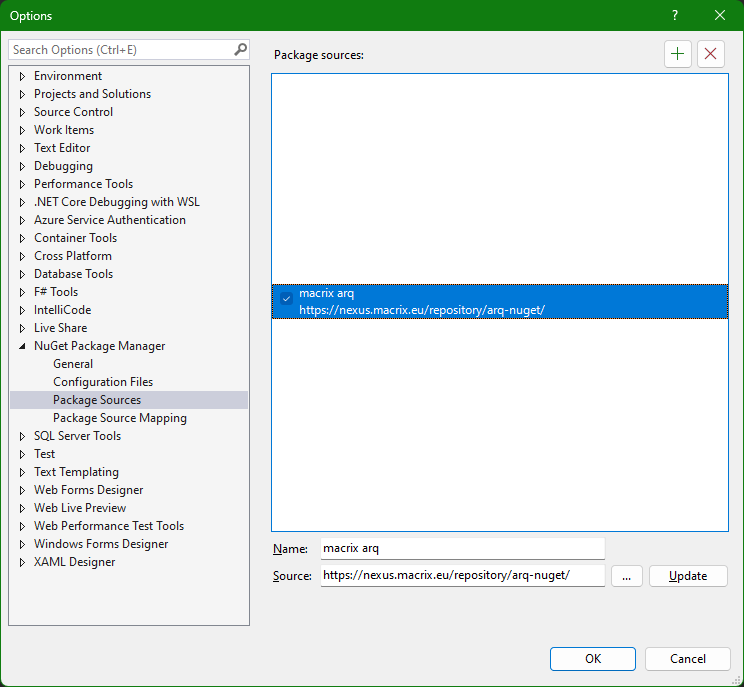
If you have installed Visual Studio, you can use it to add a new NuGet package source that contains the ArconQ SDK. Add this link: https://nexus.macrix.eu/repository/arq-nuget/ to Package Sources in the NuGet Package Manager (Visual Studio 2022 example):
Installing ArconQ project templates
The ArconQ team has created .NET project templates to simplify creating new apps for ArconQ, which also provide project structure scaffolding.
To install them on your system, execute the following dotnet command:
dotnet new install ArconQ.Project.Templates
To test if the templates are ready to use, execute the following command:
dotnet new arconq-app --help
Installing ArconQ CLI
The ArconQ Command-Line Interface (ARQ CLI) simplifies and automates work with ArconQ. Using ARQ CLI, developers can build and deploy (push) Apps to the ArconQ platform. This step is optional but will simplify the process.
The ArconQ CLI is distributed as a global NuGet package extension. Use the following command to install it:
dotnet tool install --global ArconQ.CLI
This command will download the latest version of ArconQ CLI from the official NuGet repository and install it as a global extension. To verify that ArconQ CLI has been successfully installed, type:
arq --version
If everything is set up correctly, you should see the version number of ArconQ CLI displayed, confirming a successful installation.
For proper use of the CLI, a configuration of the ArconQ instance must be added. Please refer to the CLI documentation for details.