Dashboard Widgets
ArconQ allows you to create Dashboards full of informative Widgets. With this feature, you can create customizable pages that provide real-time information from apps across all workspaces. This allows you to monitor and manage your project without having to switch between multiple apps and windows.
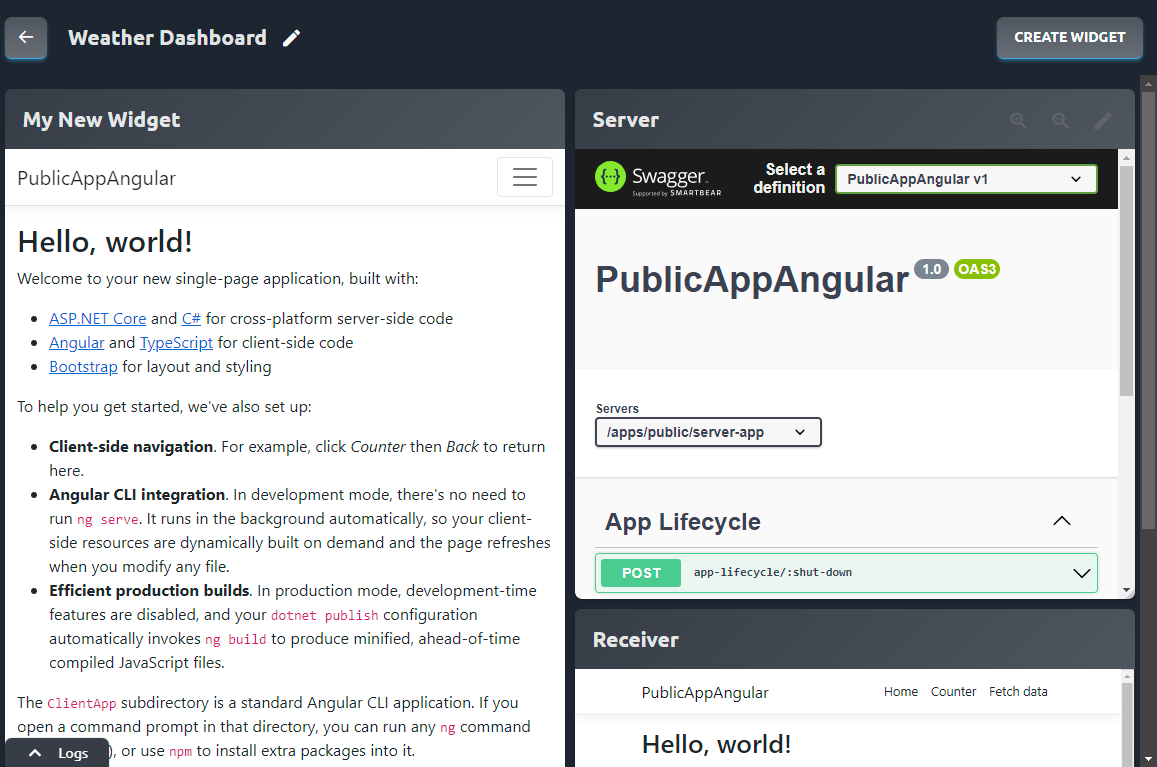
Example of a Dashboard with 3 widgets
Creating a Dashboard
- Go to the "Dashboards" section on the left side menu.
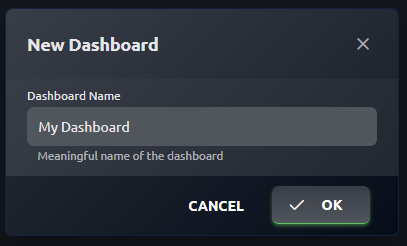
- If you don't have any dashboards yet, you can create one by clicking on the CREATE DASHBOARD button.
- Enter a unique and descriptive name for your dashboard.
- You can also choose whether you want your dashboard to show up in the menu or not (this option is enabled by default).
Adding Widgets
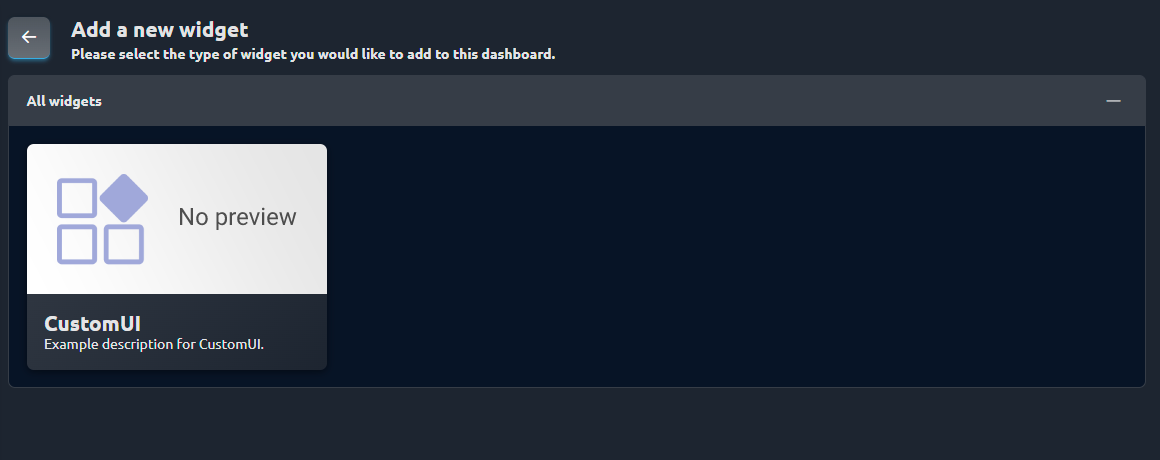
- Open your dashboard and click on the CREATE WIDGET button.
- You will see a list of different widget types that you can choose from.
- Pick the one that suits your needs and click Next.
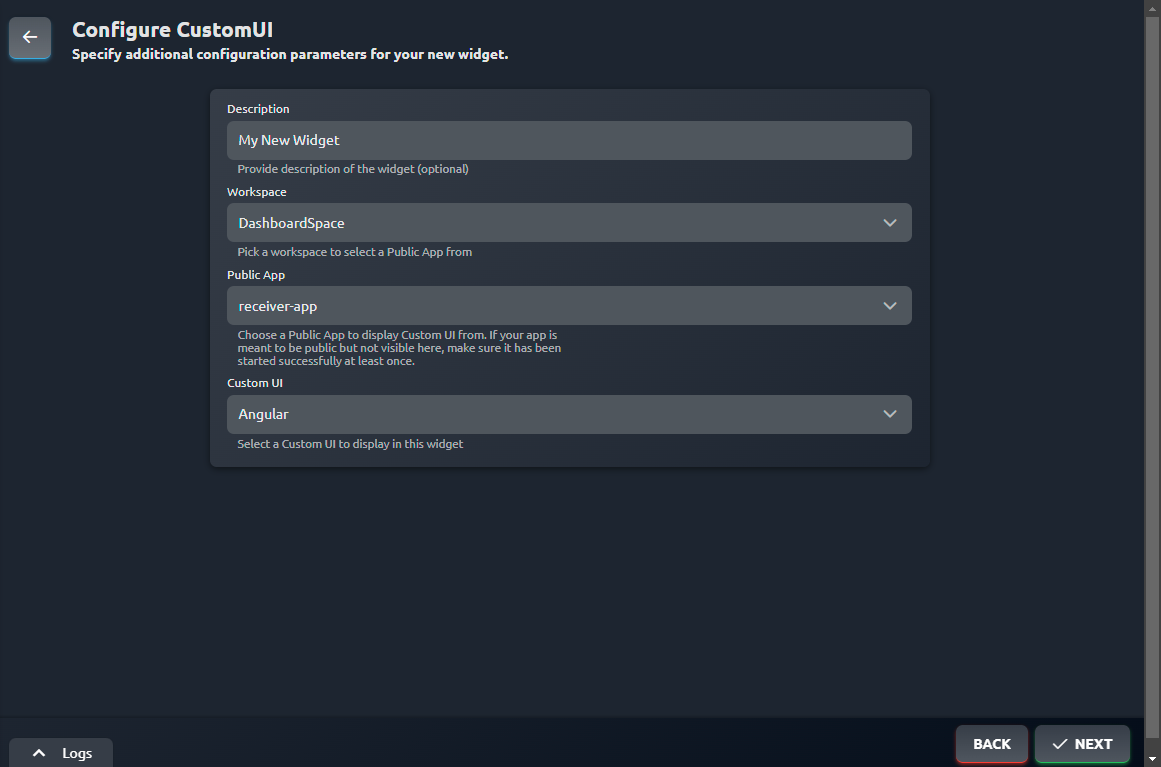
- On the next screen, you can configure your widget according to the type you selected.
- The configuration options may vary depending on the widget type.
- Click Next when you are done.
- Your widget is now ready!
- You can adjust its position and size by dragging its header or its edges.
- You can also edit or delete it by clicking on the pencil icon in the top right corner of the widget.