ArconQ Insights
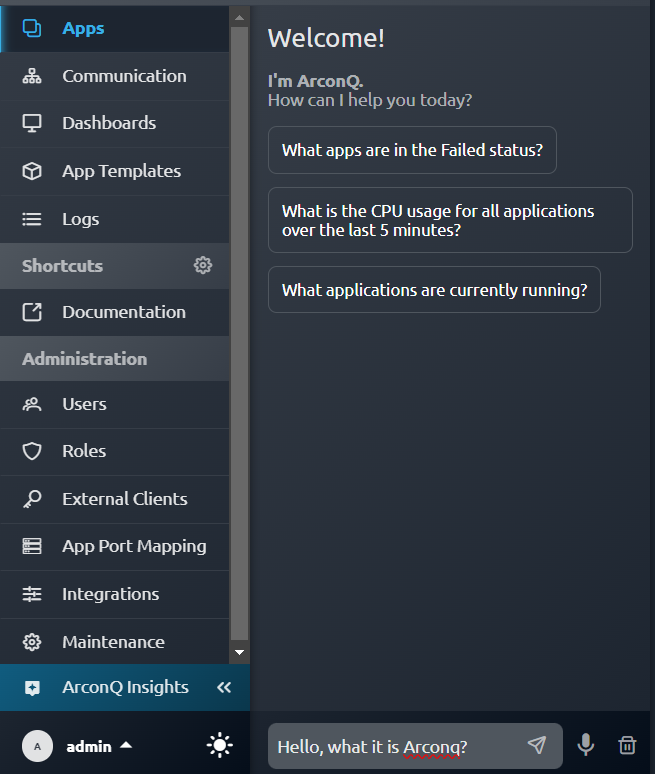
ArconQ Insights is an advanced assistant feature within the ArconQ system that leverages OpenAI's capabilities to facilitate efficient interaction through natural language. This tool allows users to query system information and retrieve data. With ArconQ Insights, users can monitor system metrics, and receive real-time updates, enhancing overall productivity and system management.
Accessing ArconQ Insights
Login to ArconQ: Ensure you are logged into the ArconQ system.
Open ArconQ Insights: Click the "ArconQ Insights" button in the sidebar to open the chat interface.
Enter Query: Type your query into the chat interface and press Enter.
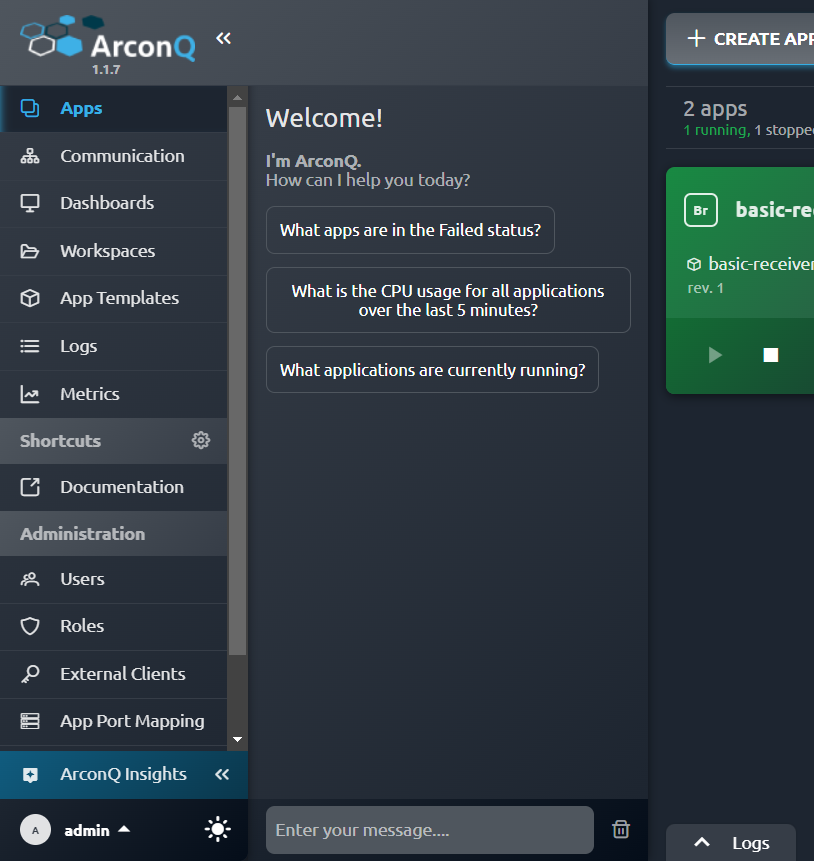
Using ArconQ Insights
ArconQ Insights enables users to perform a variety of queries. This functionality streamlines workflows by allowing quick access to vital system data through simple queries. Below are examples of common operations:
Application Management Queries
Retrieve Application Status:
- Query: "What apps are in the Failed status?"
- Response:
There are no applications in the Failed status at this time.
Get Workspaces:
Query: "Show me a list of workspaces"
Response:
Here are the available workspaces:

TestWorkspaces
ID: f2c5f0ae-6781-487f-9b08-dd01cb1ac900
Description: Not provided.

autotest
ID: 605ae09a-ab3b-4610-a5df-fd6ea15c121f
Description: Not provided.

These workspaces can be used to organize and manage your applications. If you need information on the applications within a specific workspace or any other assistance, please let me know!
List Applications by Status:
Query: "Which applications are currently stopped?"
Response:
The following applications are currently in the Stopped status:

basic-sender
ID: 3bff446b-b754-4c4e-9710-fba5259c365f
Version: 1
Workspace ID: f2c5f0ae-6781-487f-9b08-dd01cb1ac900
Status: Stopped

basic-receiver
ID: 1d60bec3-cb9e-4d37-a6b4-e74291f788c5
Version: 69
Workspace ID: f2c5f0ae-6781-487f-9b08-dd01cb1ac900
Status: Stopped

These applications are not currently running and are available for further actions such as starting or configuration adjustments.
System Metrics Queries
Monitor CPU Usage:
- Query: "What is the CPU usage for all applications over the last 5 minutes?"
- Response:
The total CPU usage for all applications in the namespace 'arq-prod' over the last 5 minutes is approximately 0.001863 seconds.
Check Memory Usage:
- Query: "Show the memory usage for all applications in the last hour."
- Response:
The memory usage for all applications in the namespace 'arq-prod' over the last hour is approximately 187.83 MB.
Monitor Disk I/O:
Query: "What is the disk read and write usage for all applications in the last 24 hours?"
Response:
The disk usage for all applications in the namespace 'arq-prod' over the last 24 hours is as follows:

Disk read bytes: Approximately 0 bytes
Disk write bytes: Approximately 0 bytes

It appears there was no disk read or write activity recorded over the specified period.
Adding or Updating OpenAI Credentials
To use ArconQ Insights, you need to configure your OpenAI credentials. Follow these steps:
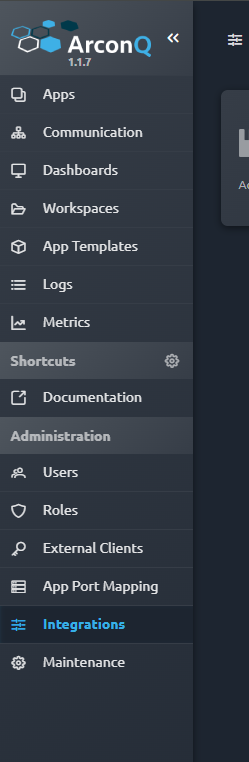
Navigate to Integrations:
Go to the "Integrations" section in the left sidebar.
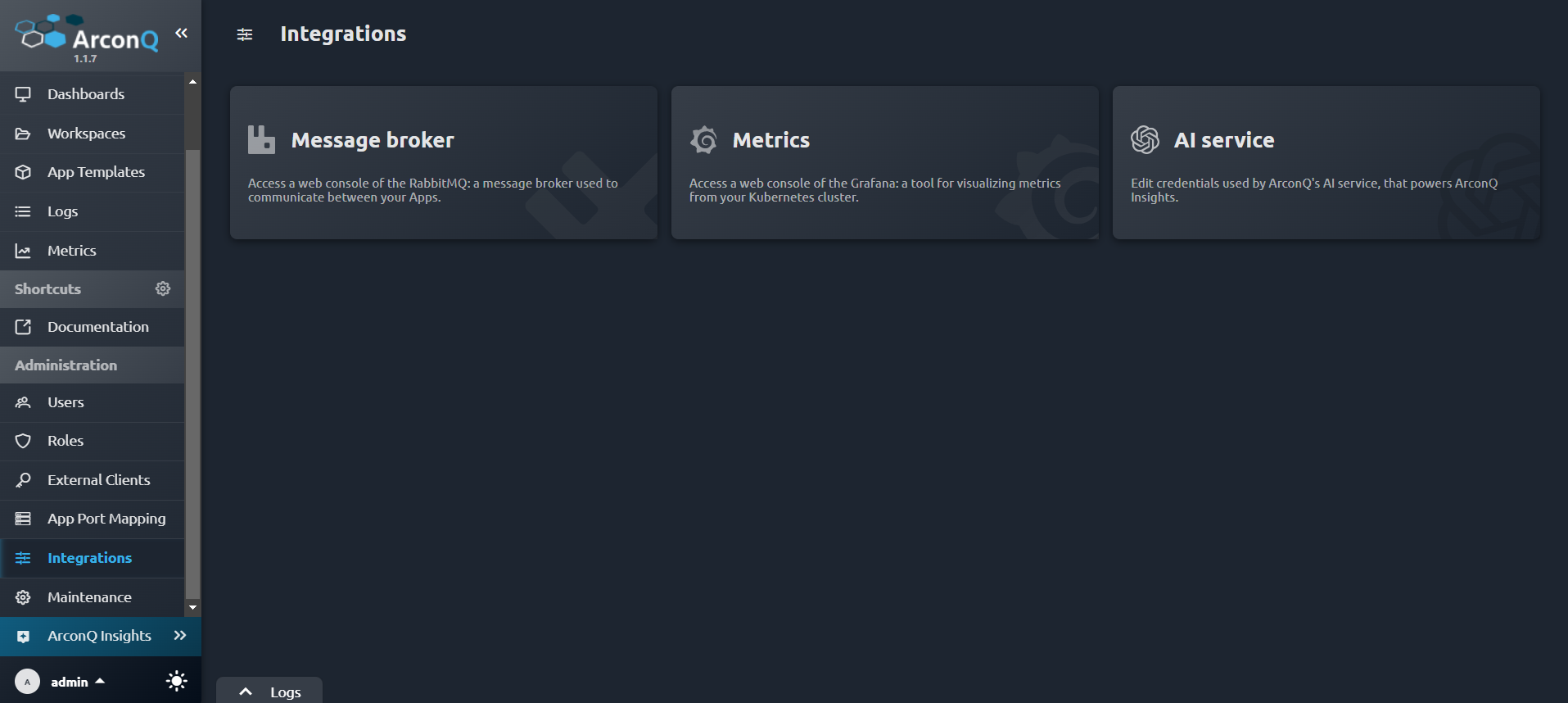
Select AI Service:
Click on the "AI Service" tile to open the credentials configuration window.
Enter or Update Credentials:
- Click the "Show" button (eye icon) next to the fields to reveal and edit the credentials. Enter your OpenAI API key and Organization ID in the provided fields. If credentials already exist, you can update them here.
- You can either add new credentials if none exist or update the existing credentials.
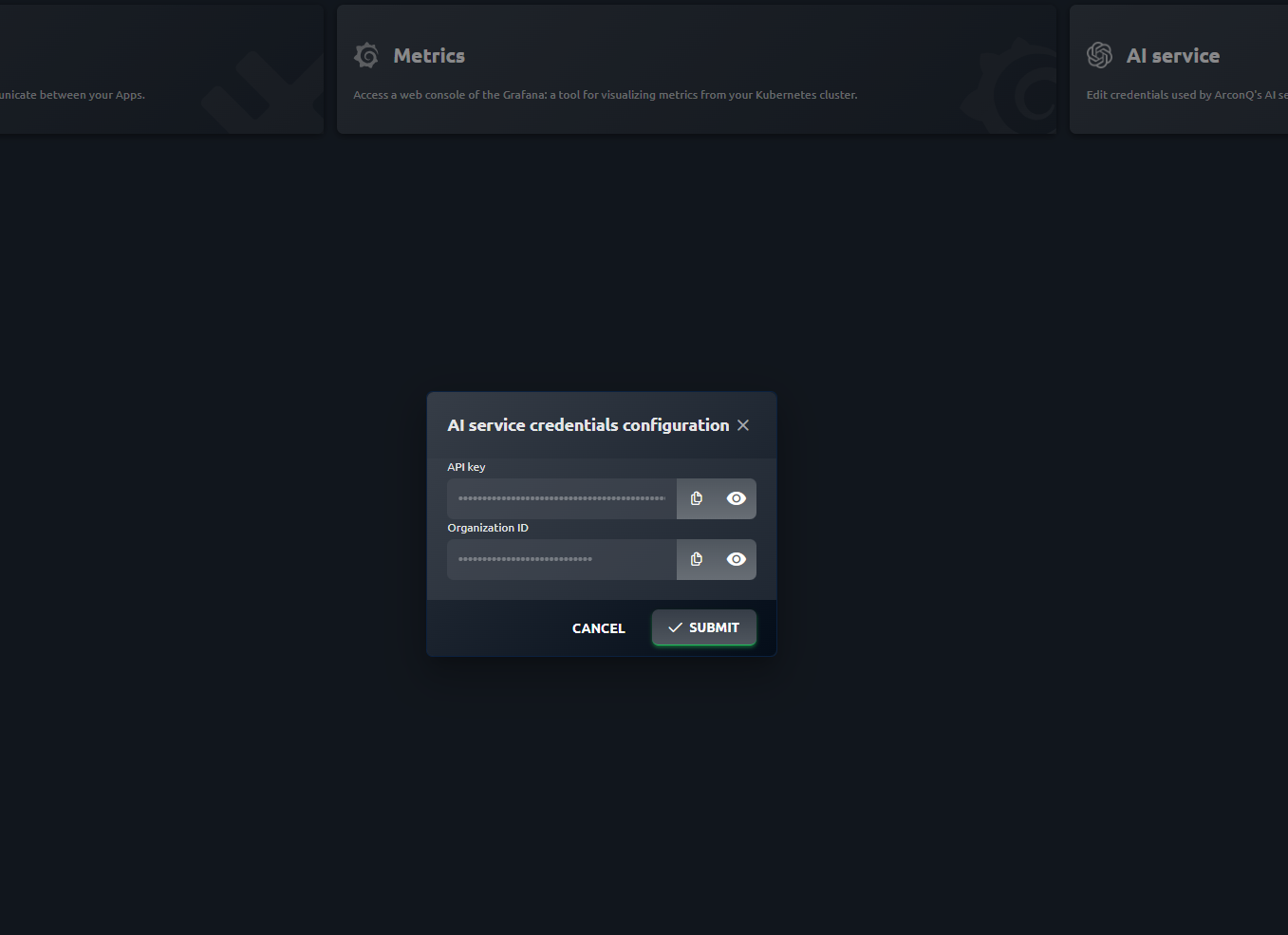
Submit Credentials:
- Click the "Submit" button to save or update your credentials.
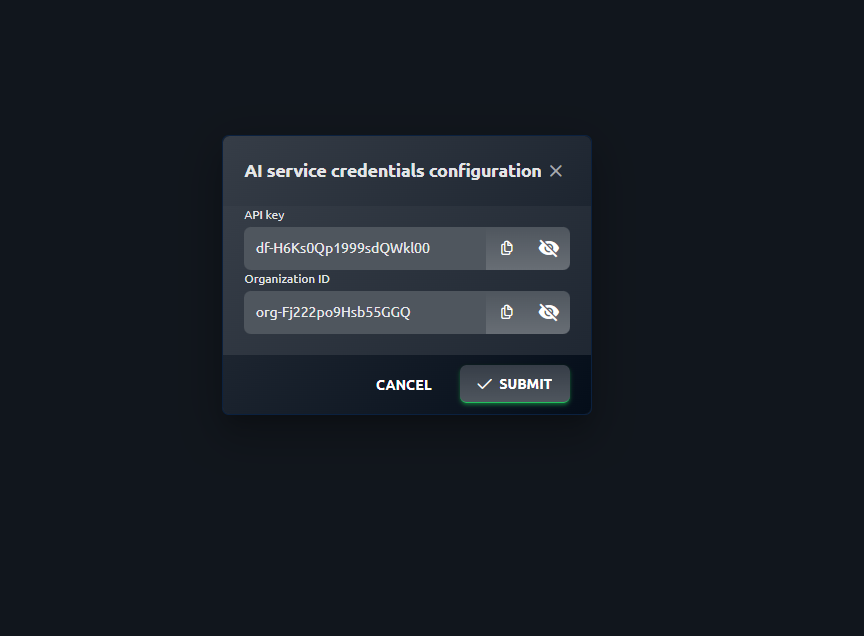
Alternatively, you can configure these credentials using Helm in the values.yaml file:
insights:
  # If true, creates Insights resource. This is an experimental feature and currently intended for internal use only.
  # Please use it at your own risk. Future changes might affect its behavior and configuration options.
  enabled: true

  openAi:
    # The API key for accessing OpenAI services.
    apiKey:

    # The organization ID associated with OpenAI account.
    orgId:
Tips for Effective Use
- Be Specific: Provide detailed queries to get precise information.
- Follow Examples: Use example query formats to ensure clarity.
Speech Recognition Feature
The speech recognition feature in ArconQ Insights allows users to interact with the chat using voice.
Activate the Microphone:
- Click the microphone icon at the bottom of the chat interface to start recording your voice.
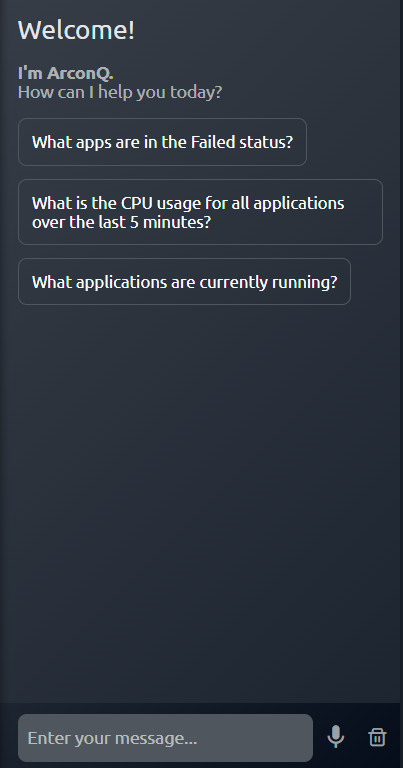
Speak Your Question:
- Clearly state your question or command while the microphone is active. The system will display "Listening..." to indicate it is capturing your voice.
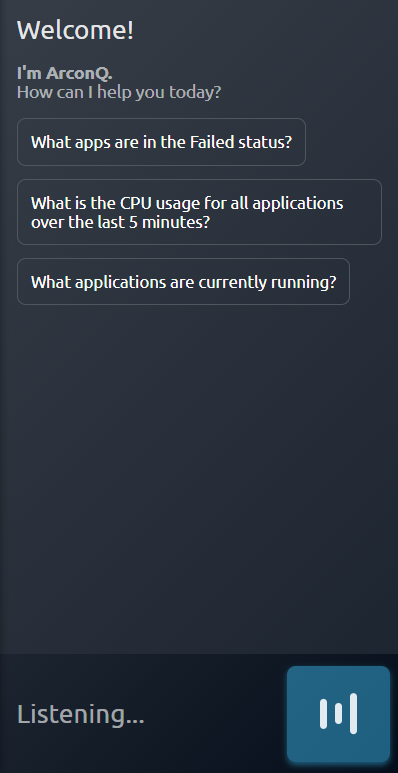
Stop Recording:
- Click the microphone icon again to stop recording. The system will begin processing your voice input and display "Recognizing..."
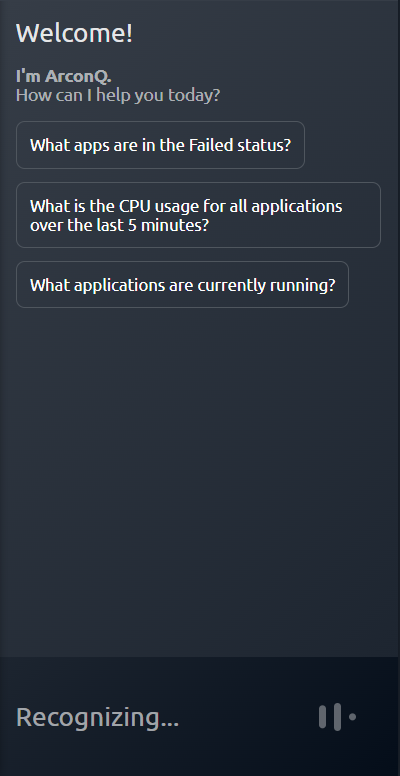
View Transcription:
- The transcribed text will appear in the chat input field. You can review and edit it if necessary before sending.
Tips for Best Results
- Speak Clearly: Ensure you speak clearly and at a moderate pace for optimal recognition accuracy.
- Minimize Background Noise: Try to reduce any background noise to improve the system's ability to accurately capture your voice.
- Review Transcription: Always review the transcribed text for accuracy before sending your query.