Configure ArconQ VM with ArconQ Installer
The ArconQ Installer is a tool that simplifies and speeds up the installation of the ArconQ runtime in ArconQ VM environment. It streamlines the installation process, making it quick and straightforward.
The ArconQ Installer is specifically designed for setting up the ArconQ runtime within the ArconQ VM (Virtual Machine) environment. It is not a general-purpose tool for configuring virtual machines.
Installer Overview
The ArconQ Installer will perform the following steps:
- Import required container images.
- Bootstrap a single-node Kubernetes cluster.
- Install the flannel network plugin.
- Install the nginx ingress controller.
- Install the local path provisioner.
- Install ArconQ (specific version based on the installer).
Prerequisites
- Download the system image for virtual machine creation.
- Create a virtual machine:
- In Hyper-V use Generation 1 VM. In VirtualBox do not use UEFI.
- Use the default network switch for configuration.
- Assign a minimum of 2 CPU units.
- Allocate at least 8 GB of RAM for optimal performance.
- Internet access is not required for the configuration.
- Ensure a virtual machine is appropriately configured before initiating the ArconQ installation.
Starting the Installer
- Run the
arconq-installercommand. - The installer displays the ArconQ version and outlines the installation process.
- Press 'Enter' to begin the installation.
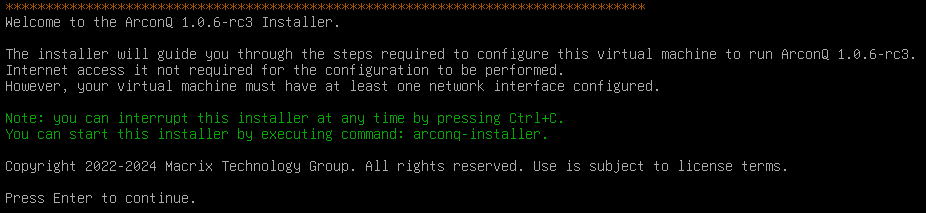
At any point during the installation, if you need to stop the process, simply press Ctrl+C to interrupt the installer.
Configuration Process
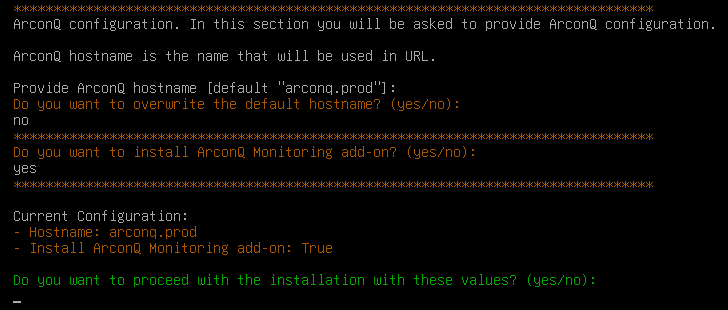
The installer prompts users to provide configuration values:
- ArconQ hostname, which will be used in the URL (default "arconq.prod").
- Whether to install metrics system for ArconQ .
Confirmation Before Cluster Bootstrap
- Before starting the cluster bootstrap, the installer displays the entire configuration for user confirmation.
- Users must confirm with
yesto proceed. This confirmation saves the configuration values for future reference or auditing.
Installation Execution
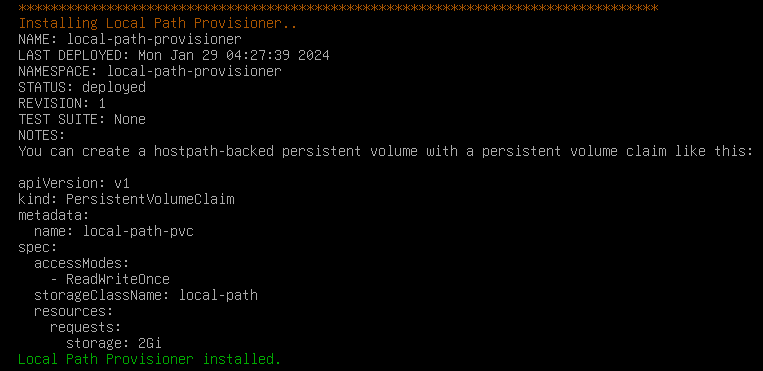
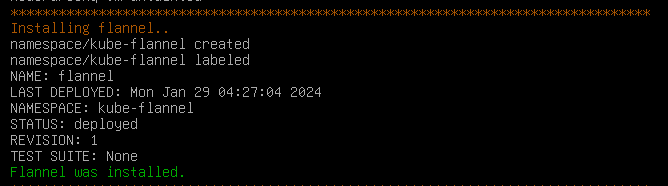
- The installer then proceeds with the import of container images, cluster bootstrap, installation of the necessary plugins and ArconQ..

Completion of Installation
- Upon completion, a message confirms the successful configuration.
- The installer provides the URL where the ArconQ installation is accessible (e.g., https://arconq.prod).
- Configure the DNS server or the hosts file to enable proper resolution of the hostname.

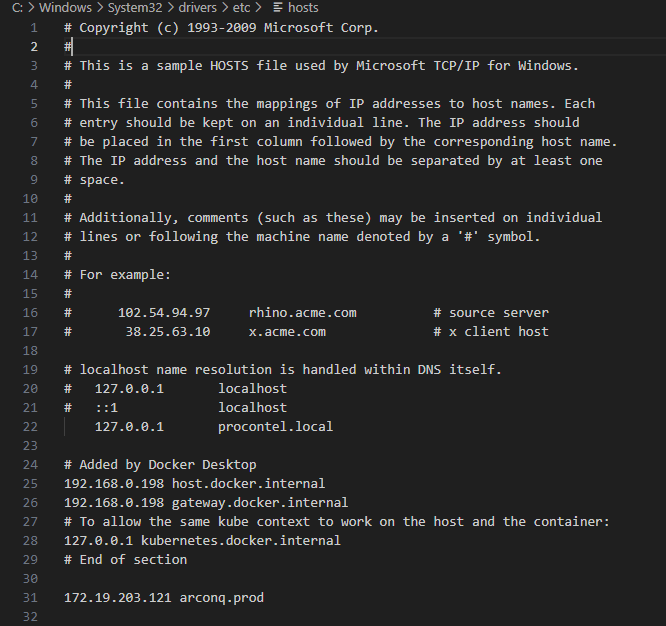
Configuring the Hosts File
- Open the hosts file located at
c:\Windows\System32\Drivers\etc\hostswith a text editor running as administrator. - Add an entry with the IP address of the machine where ArconQ is installed, followed by the hostname.
- Save the changes and close the editor.
- Restart your browser or clear the DNS cache to ensure the changes take effect.
Post-Installation
Users should verify the ArconQ installation by accessing the provided URL and ensure that all configurations, including DNS settings, are correctly implemented.
In case metrics were not enabled during the installation. It can always be adjusted later.
- Edit
/etc/arconq/arconq-values.yamlfile. - Set the value of
metrics.enabledtotrue. - Run helm upgrade:
helm upgrade -n arconq arconq "/opt/arconq/charts/arconq-x.x.x.x.tgz" -f /etc/arconq/arconq-values.yaml
In the last step please replace the placeholder
x.x.x.xwith the arconq version installed on the VM. example:/opt/arconq/charts/arconq-1.1.15.tgz